Changelog/Vitals 1.5
Vitals 1.5: make it yours, and see the Neural Engine

Quick answer
Vitals 1.5 lets you change how Vitals looks, and adds the Neural Engine to what it watches. A new Customize page in Settings holds the chart colors, the font and weight of the numbers, the spacing, how far back the charts go, and how exported pictures look. A new tab shows how hard the Neural Engine is working and which apps are using it. And in the menu bar, a reading can turn red while it is under strain.
Customize: the look of Vitals in one place
Open Settings → Customize. The two cards at the top are a preview: they change as you choose, so you see the result before you close Settings.
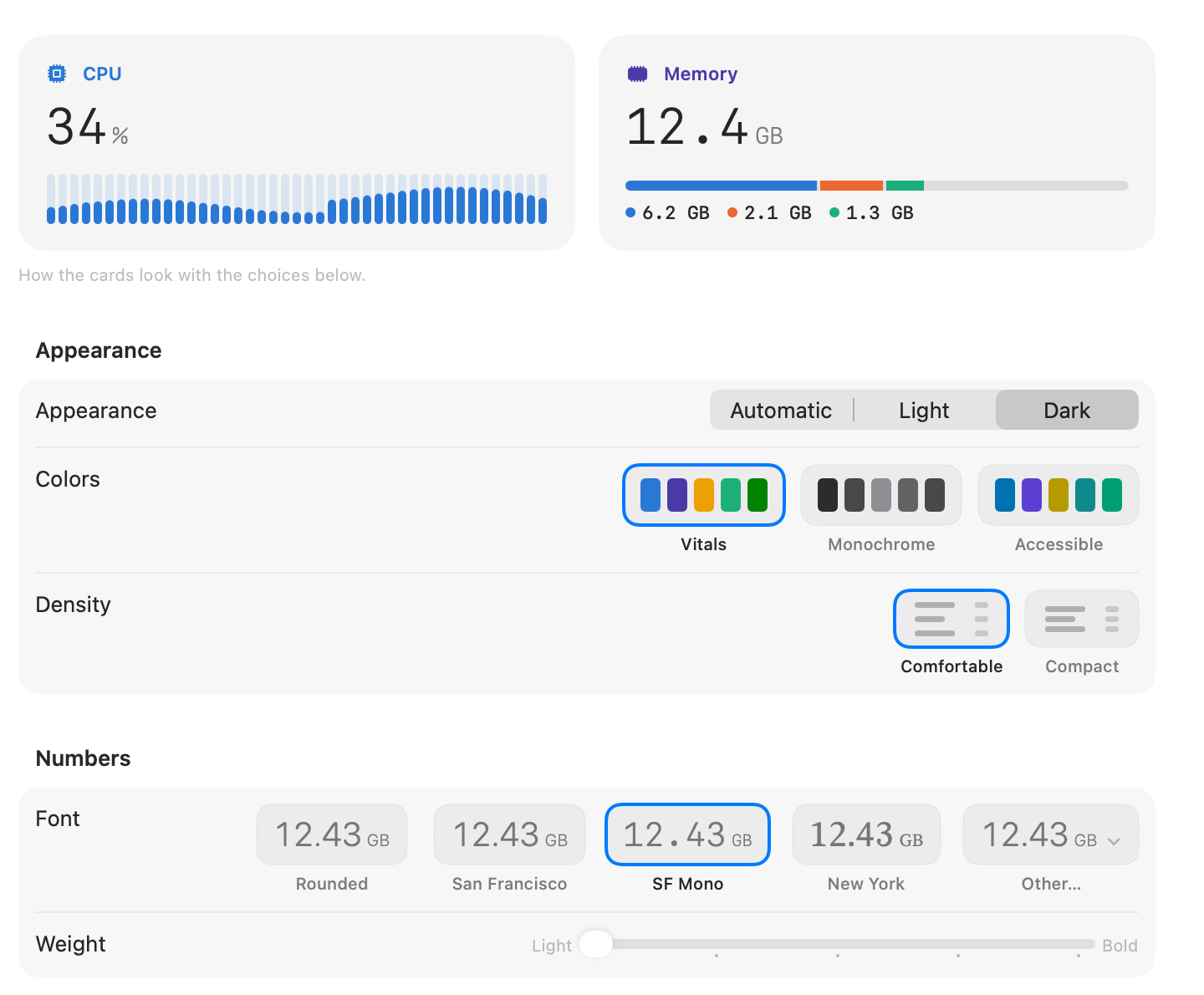
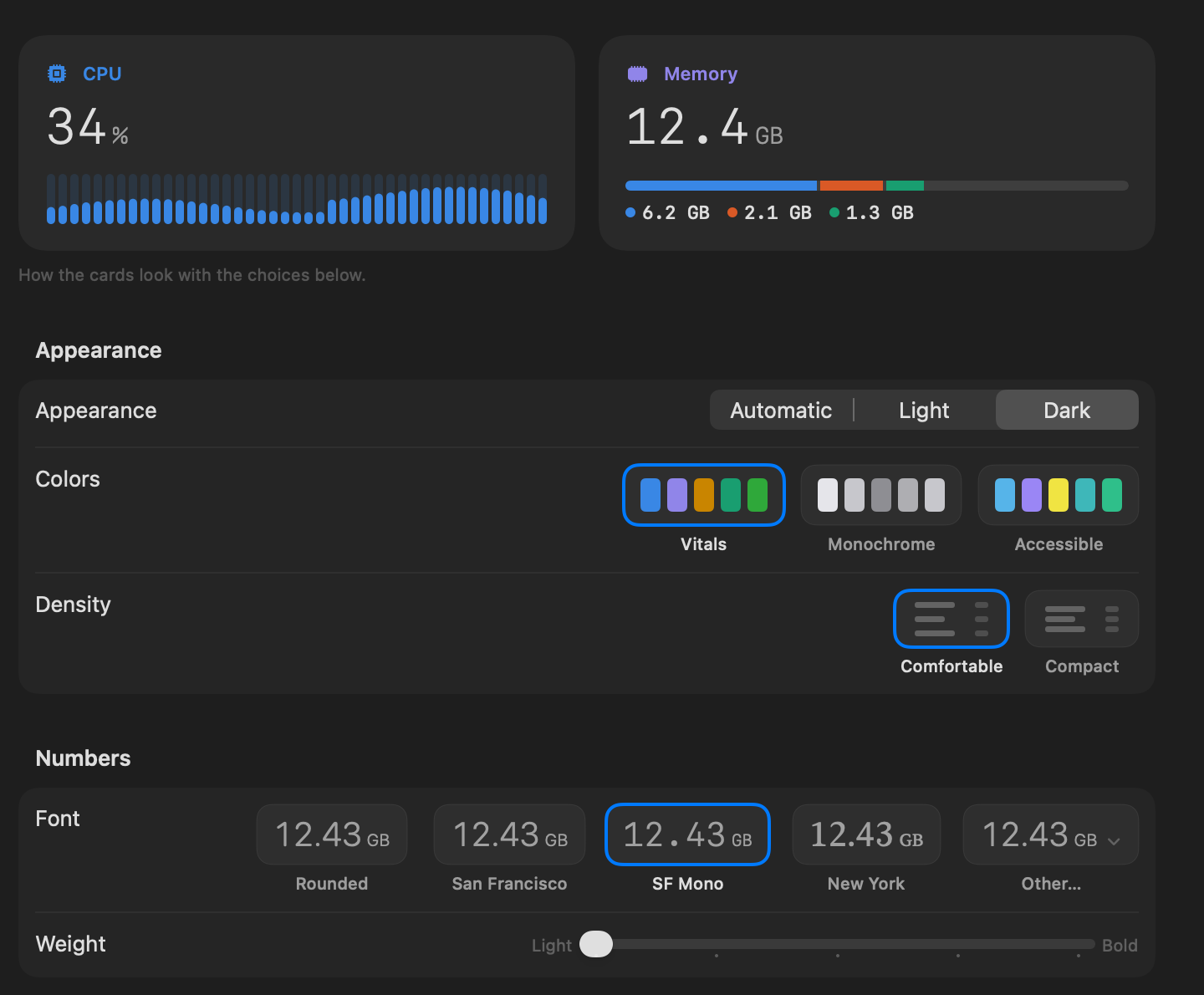
- Colors: Vitals’ own, Monochrome for a calmer window, or Accessible, a set chosen to stay easy to tell apart with color blindness.
- Density: Compact brings the cards and rows closer together, so more fits on one screen.
- Font and Weight: Rounded, San Francisco, SF Mono, New York, or any font on your Mac under Other, from light to bold.
- Charts Show: the last 5, 15 or 30 minutes.
- Float on Top: the Vitals window stays above your other windows.
The menu bar keeps its own colors and the system font. Its colors are in Settings → Layout → Menu Bar.
Exported pictures, your way
The pictures that Export on the Overview makes follow the same page. Choose a Background: the window’s own, light, dark, or transparent for a picture that goes onto a page of your own. Turn off Vitals Icon and Name and the top of the picture shows only your Mac. The numbers use the font you chose.
A tab for the Neural Engine
If you run AI models on your Mac, dictate, or use Apple Intelligence, part of that work happens on the Neural Engine, and Activity Monitor does not show it. The new tab shows how hard it is working right now, its average and peak, a chart of the last minutes, and the apps using it.
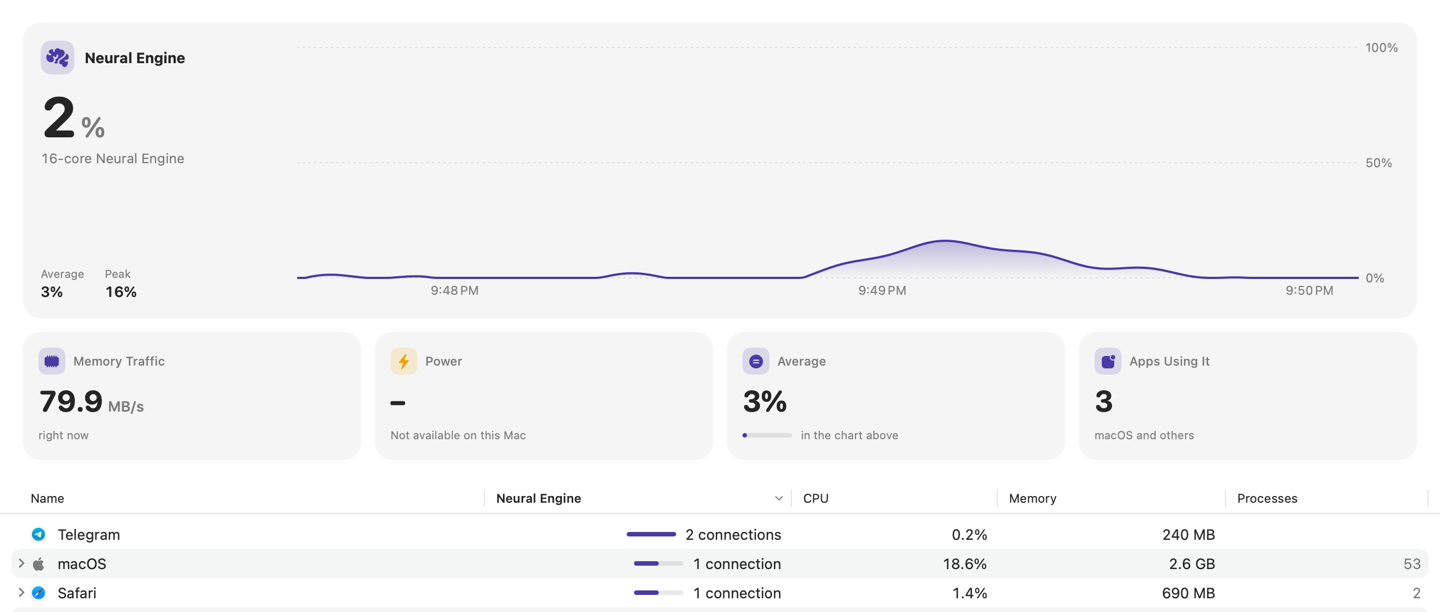
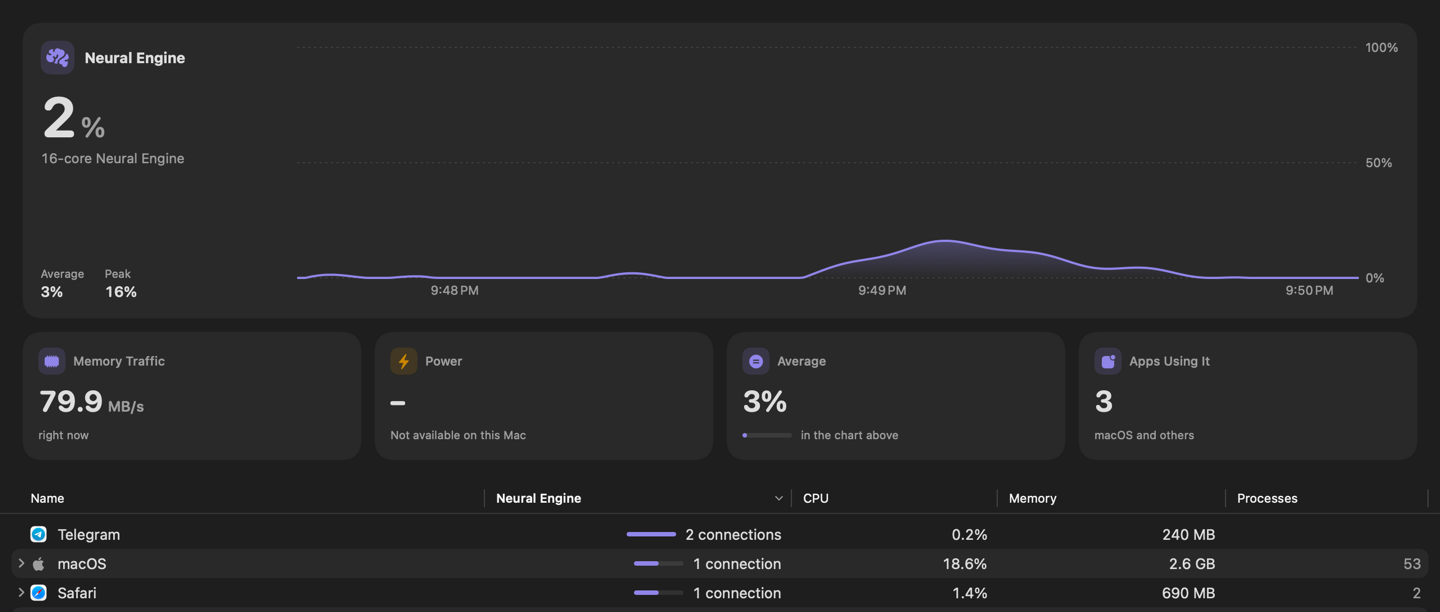
- Add it to the menu bar in Settings → Layout → Menu Bar.
- It has a card on the Overview, beside the GPU.
- When an app keeps the Neural Engine busy for 20 minutes, Vitals tells you which one.
On Macs with Apple silicon.
Readings that turn red under strain
A customer asked for this one. Turn on Show Readings in Red Under Strain in Settings → Layout → Menu Bar, and a reading turns red while it is under strain and goes back when it passes.
- CPU, GPU or Neural Engine at 90%.
- Memory under pressure.
- A disk with less than a tenth free.
- A Mac at the temperature you set in Settings → Insights.
A battery under 20% and not charging is always red. Network and power never turn red.
Questions people ask
Does any of this use more battery?
No. These are choices about how Vitals looks. Showing 30 minutes of charts keeps a little more in memory and nothing else.
Can I use my own font?
Yes. Choose Other under Font and pick any font installed on your Mac. It applies to the big numbers and the values on cards. Small text keeps the system font.
Do the colors change the menu bar?
No. The menu bar has colors of its own, in Settings → Layout → Menu Bar.
Which Macs show the Neural Engine?
Macs with Apple silicon. On an Intel Mac the tab is not shown.
Why does the Neural Engine read 0%?
Because nothing is using it right now. It works in short bursts: dictation, photo search, an AI model answering.
How do I go back to how Vitals looked before?
In Settings → Customize, choose Vitals for Colors, Comfortable for Density and Rounded for Font, and move Weight to Bold.
Everything in 1.5
Vitals 1.5 is a free update. In Vitals, choose Check for Updates, or download it from vitalsmac.com.
- New A Customize page. Settings → Customize holds the look of Vitals in one place, with a preview at the top that changes as you choose.
- New Chart colors. Choose Vitals’ own colors, Monochrome, or Accessible, a set that stays easy to tell apart with color blindness.
- New A font for the numbers. Rounded, San Francisco, SF Mono, New York or any font on your Mac, from light to bold. Exported pictures use it too.
- New Compact spacing. Compact brings the cards and rows closer together, so more fits on one screen.
- New Longer charts. The charts can show the last 5, 15 or 30 minutes.
- New Float on Top. Keep the Vitals window above your other windows while you work.
- New Export your way. Exported pictures can be light, dark or transparent, with or without the Vitals icon and name.
- New A Neural Engine tab. How hard the Neural Engine is working, which apps are using it, and a chart of the last minutes. It can also sit in the menu bar and on the Overview, and Vitals tells you when an app has kept it busy for 20 minutes. On Macs with Apple silicon.
- New Readings turn red under strain. Turn on Show Readings in Red Under Strain in Settings → Layout → Menu Bar, and a reading turns red while it is under strain: CPU or GPU at 90%, memory under pressure, a nearly full disk, a hot Mac.