Changelog/Vitals 1.6
Vitals 1.6: a year of history, and when your Mac was at its limits

Quick answer
Vitals 1.6 keeps your history for up to a year instead of 30 days, and answers a question the averages could not: when was my Mac at its limits? A new Peaks card under Over Time shows the highest CPU, memory pressure, temperature and power in the time you chose, when each was, and the stretches at a limit. Your history exports as CSV from four places. You can set a limit of your own for one app, and tell Vitals to be quiet about another. And when a reading in the menu bar turns red, the dropdown now says which one, the limit it crossed and for how long.
Keep a year of history
Open Settings → General and choose how long Vitals keeps what your Mac and each app used: 30 Days, which is the default and what Vitals kept before, 90 Days, 6 Months or 1 Year. The same choices appear in the range menu of Over Time on the Overview, and past 90 days the chart draws a bar per week.
The line under it says since when Vitals has been recording. Delete History… beside it removes everything recorded and starts again from now.
A year of history takes about 30 MB on your Mac. Choosing a shorter time deletes the older history, and Vitals asks first.
Peaks: when your Mac was at its limits
The chart in Over Time is of averages, and an average hides the ten minutes your Mac ran flat out. The new Peaks card under it shows the highest CPU, memory pressure, temperature and power in the time you chose, and when each was.
Under At a Limit are the stretches your Mac spent at a limit: from when to when, for how long, and what it was. CPU or GPU at 90% or more, memory under pressure, the temperature you set in Settings → Insights, or macOS slowing the Mac down to cool it.
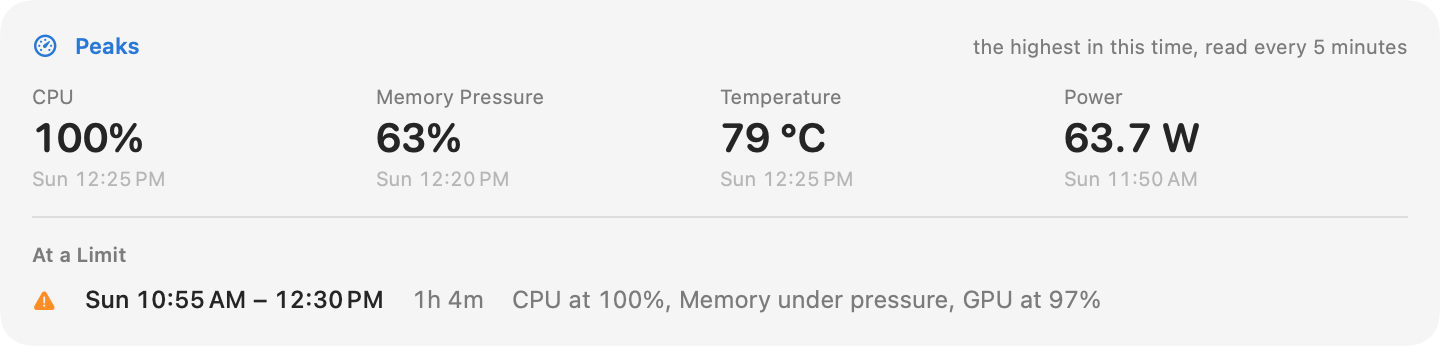
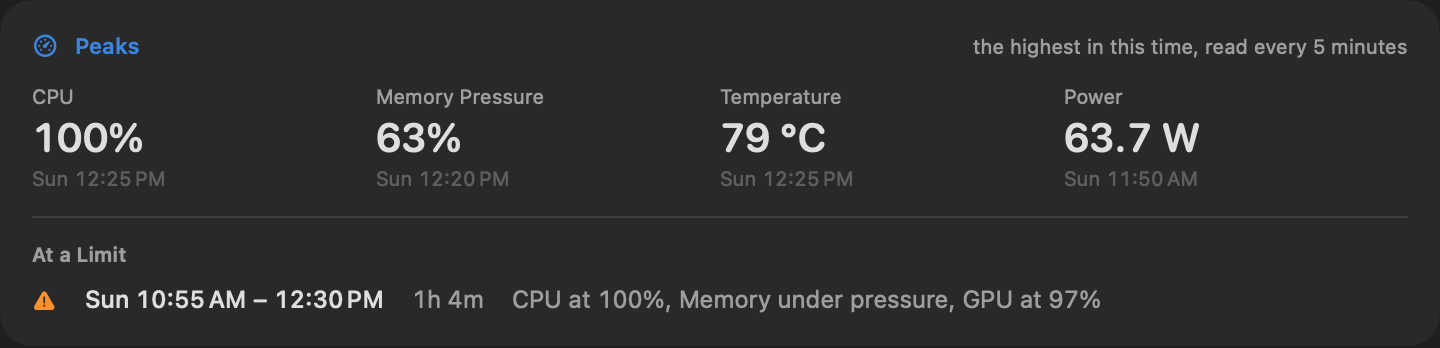
Vitals keeps a reading of your Mac every five minutes for this, from 1.6 on. The card fills from the day you update.
Export your history as CSV
Click Export CSV beside the range menu in Over Time, and Vitals saves a folder in Downloads with three files: your apps by day, your Mac by hour, and the readings every five minutes. The same button is in the toolbar’s Export menu with a range of its own, in File → Export History as CSV for everything kept, and in Settings → General.
The files hold app names and figures only. Times are in UTC, and numbers use a decimal point, so they open the same in every spreadsheet.
A limit of your own for one app
Vitals already tells you when any app keeps the CPU busy or grows in memory. Now you can set a limit for one app in particular: a browser above 8 GB, say, or an editor above 200% CPU, for the minutes you choose.
- 01 Open Settings → Insights. Under Tell Me When…, click Add a Limit for an App and choose the app.
- 02 Choose Memory or CPU, the limit, and how many minutes it must stay over it.
- 03 Or right-click an app anywhere in Vitals and choose Alert When…: the limit starts a little above what the app uses now.
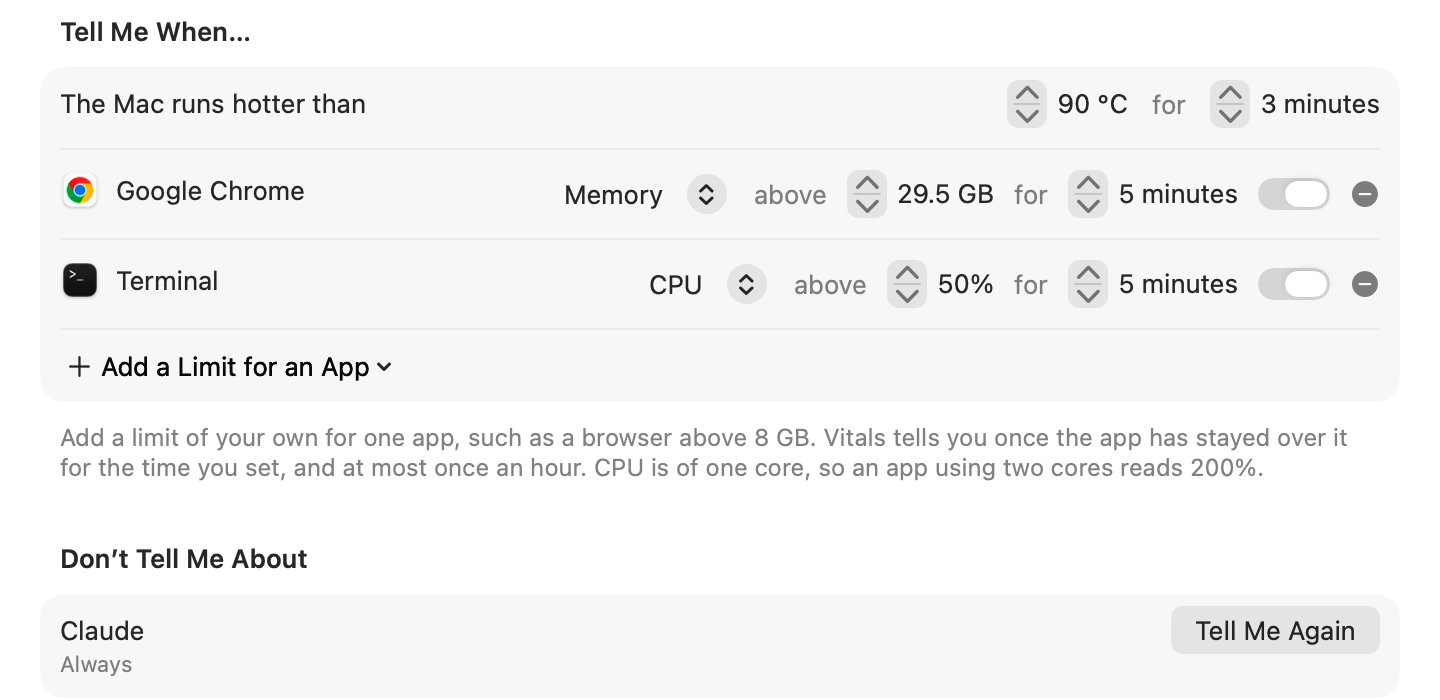
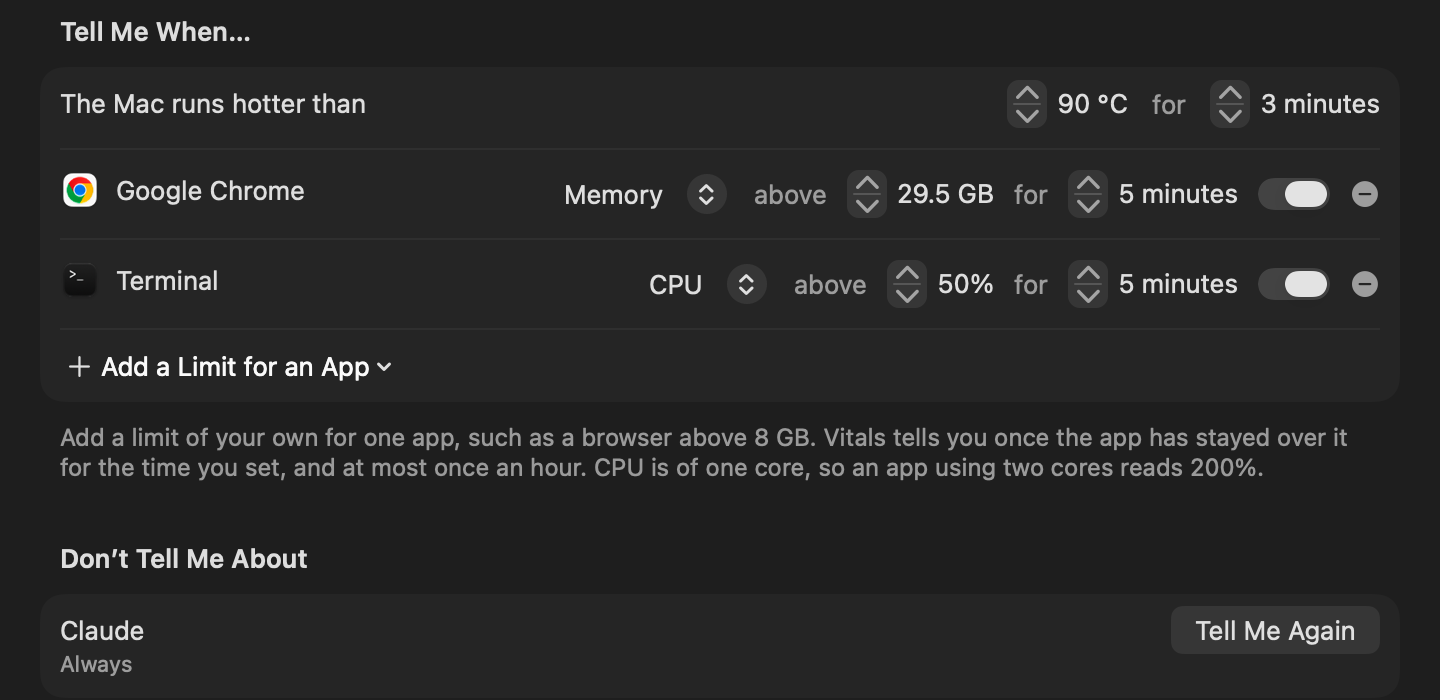
Vitals tells you at most once an hour about the same limit. CPU is of one core, so an app using two cores reads 200%.
Don’t alert about an app
Some apps are meant to be busy. Right-click one, or a notice about it under Worth a Look, and choose Don’t Alert About it, Until Tomorrow or Always. It is listed in Settings → Insights under Don’t Tell Me About, with Tell Me Again beside it.
The dropdown says what is under strain
A reader asked for this after 1.5: a reading that turns red in the menu bar should say why. Open the dropdown while one is red and the top line says which reading it is, the limit it crossed and for how long. Click the line to open that tab.
Your history is a file you can open
Everything Vitals records is one file on your Mac, and it is yours to open with any tool that reads SQLite. The tables, their columns and a few queries to start from are on the history data page.
Ask your assistant about the past
If you let Claude, Codex or Cursor ask Vitals, they can now ask about the past as well as the present: how hard your Mac was pushed over a day, a week or a year, when it was at a limit, and which apps used the most over up to a year.
- When was my Mac at its limits this week?
- How hot did my Mac get yesterday, and for how long?
- Which apps used the most memory over the last 90 days?
- Did macOS slow my Mac down to cool it during this morning’s build?
History has its own switch in Settings → Integrations, like your apps and projects.
Questions people ask
Will my history from before 1.6 carry over?
Yes. The 30 days Vitals already had are kept, and recording goes on from there.
Why is the Peaks card empty?
The readings behind it start with 1.6. Give it a few minutes after updating, and it fills from there.
Does keeping a year slow Vitals down?
No. A year takes about 30 MB on disk, and Vitals reads only the range you are looking at.
Where is the file?
In your Library folder, under Application Support → Vitals. The history data page says exactly where and what is in it.
Can I set a limit for an app that is not running?
Add a Limit for an App lists the apps running now. Open the app, add the limit, and it stays set whether the app is running or not.
Does a limit alert while I am using the app?
Yes. The built-in notices skip the app you are working in; a limit you set yourself does not.
What counts as at a limit?
CPU or GPU at 90% or more, memory under pressure, the temperature you set in Settings → Insights, or macOS slowing the Mac down to cool it.
Everything in 1.6
Vitals 1.6 is a free update. In Vitals, choose Check for Updates, or download it from vitalsmac.com.
- New History for up to a year. Vitals kept 30 days. Choose 30 days, 90 days, 6 months or a year under Keep History For in Settings → General, and Over Time shows that far back. Delete History… is beside it.
- New Peaks. A card under Over Time: the highest CPU, memory pressure, temperature and power in the time you chose, when each was, and the stretches your Mac spent at a limit. Vitals now keeps a reading of your Mac every five minutes for this.
- New Export CSV. Your history as three CSV files: your apps by day, your Mac by hour, and the readings every five minutes. From Over Time, the Export menu, File → Export History as CSV, or Settings → General.
- New A limit of your own for one app. Vitals tells you when one app has been above a memory or CPU limit you set for the minutes you set. Settings → Insights → Tell Me When…, or right-click an app and choose Alert When…
- New Quiet an app. Right-click an app, or a notice about it, to hear no more about it until tomorrow or for good. The apps you quieted are listed in Settings → Insights.
- New What is under strain, in words. When a reading in the menu bar turns red, the dropdown now says which reading, the limit it crossed and for how long.
- New Your history is a file you can open. It is one file on your Mac. The tables and some queries to start from are at vitalsmac.com/history-data.
- New Ask your assistant about the past. Claude, Codex or Cursor can ask Vitals how hard your Mac was pushed over a day, a week or a year, and when it was at a limit. Top apps can cover 90 days, 6 months or a year.
- Improved The weight you chose reaches every number. Light stays light down to the smallest value; bold stays with the big numbers.
- Fixed A font chosen under Other now reaches the tables, legends and lists.
- Fixed On some Macs the CPU temperature read about 22 °C while the Mac was warm, because cores that were asleep were counted. They no longer are.
- Fixed An app that installs each update in a new folder no longer appears in your history as a new app each time.