Changelog/Vitals 1.9
Vitals 1.9: the Process Inspector, for any process on your Mac

Quick answer
Vitals 1.9 makes Vitals a process inspector as well as an activity monitor. Click any process on your Mac and its drawer shows the app it belongs to, its code signature and entitlements, its parent process and launch agent, its full command line, and the CPU time, memory, open files and listening ports it has used since it started. Apps get a Details card with their version, bundle ID and Info.plist. All of it saves as CSV, and the same details answer in Terminal with vitals process and over MCP.
Click any process to inspect it
Activity Monitor gives a process a name and a number. In Vitals, click any process and a drawer opens beside the table with everything macOS will say about it, section by section.
- 01 Click a process in the table, or click an app and then any process in its drawer.
- 02 Under the pointer, a process in an app’s drawer shows an ⓘ beside its close mark. That opens the same details.
- 03 Click a parent or a child in the drawer to follow it.
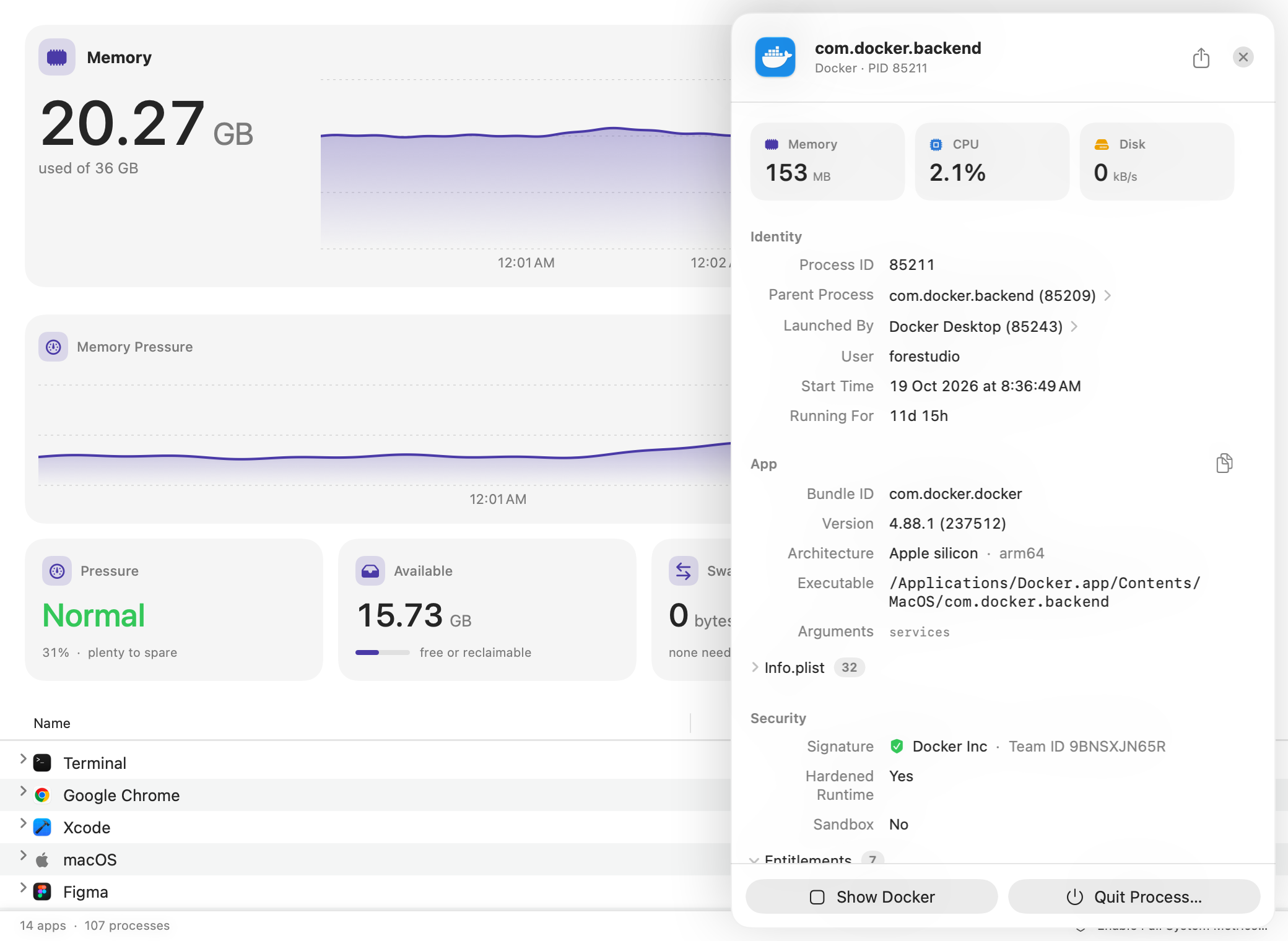
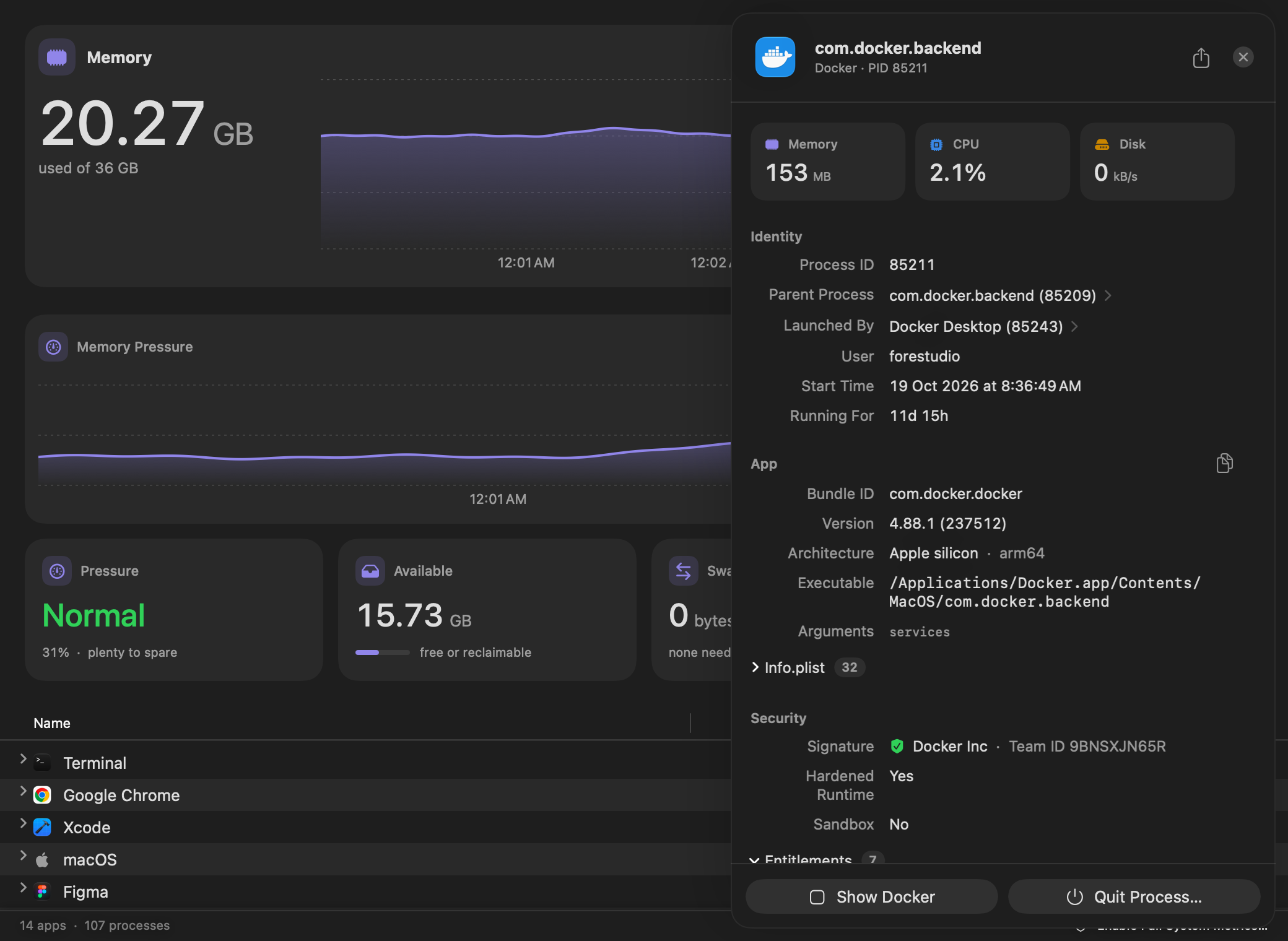
The whole tour is on the Process Inspector page.
Check any process’s code signature and entitlements
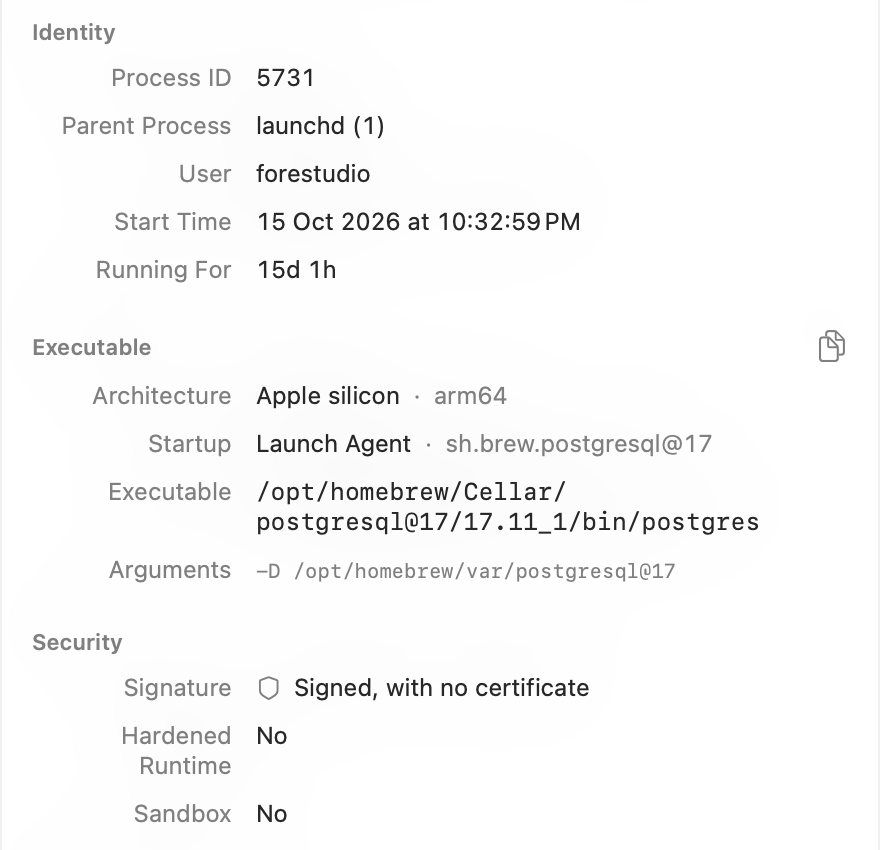
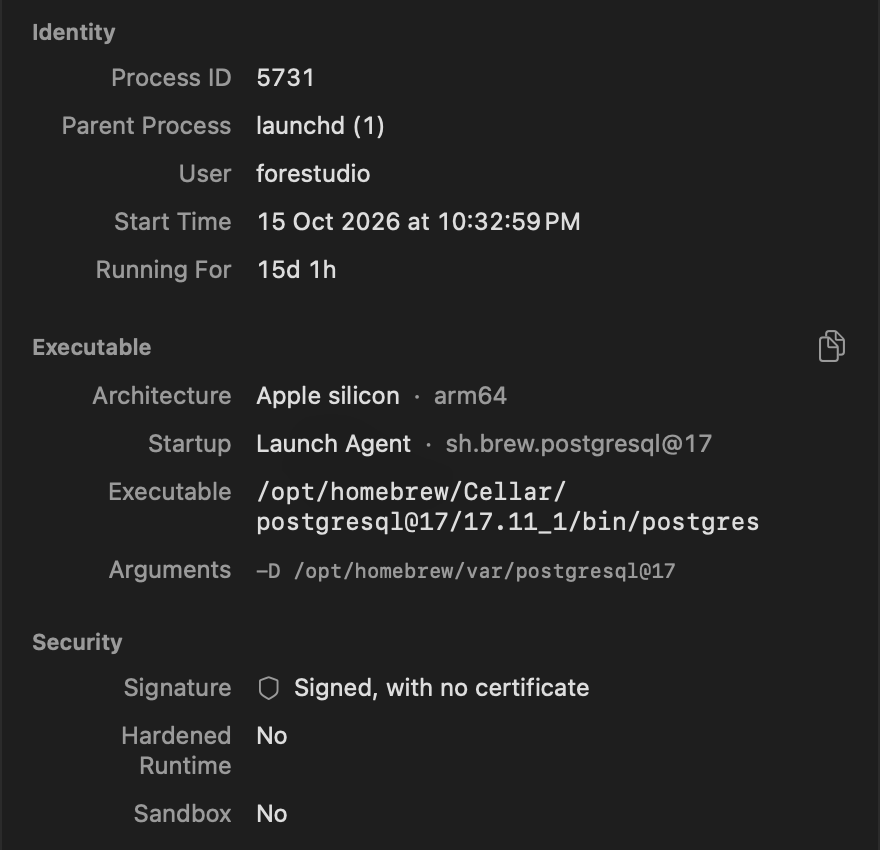
A process called Helper tells you nothing, so start with who built it. The Security section gives the developer’s name and Team ID, says whether the process uses the hardened runtime and runs in a sandbox, and lists every entitlement it holds, with its value.
A name with a Team ID is a developer Apple has identified. “Signed, with no certificate” is normal for Homebrew and for what you compile yourself. “Not signed” means no signature at all.
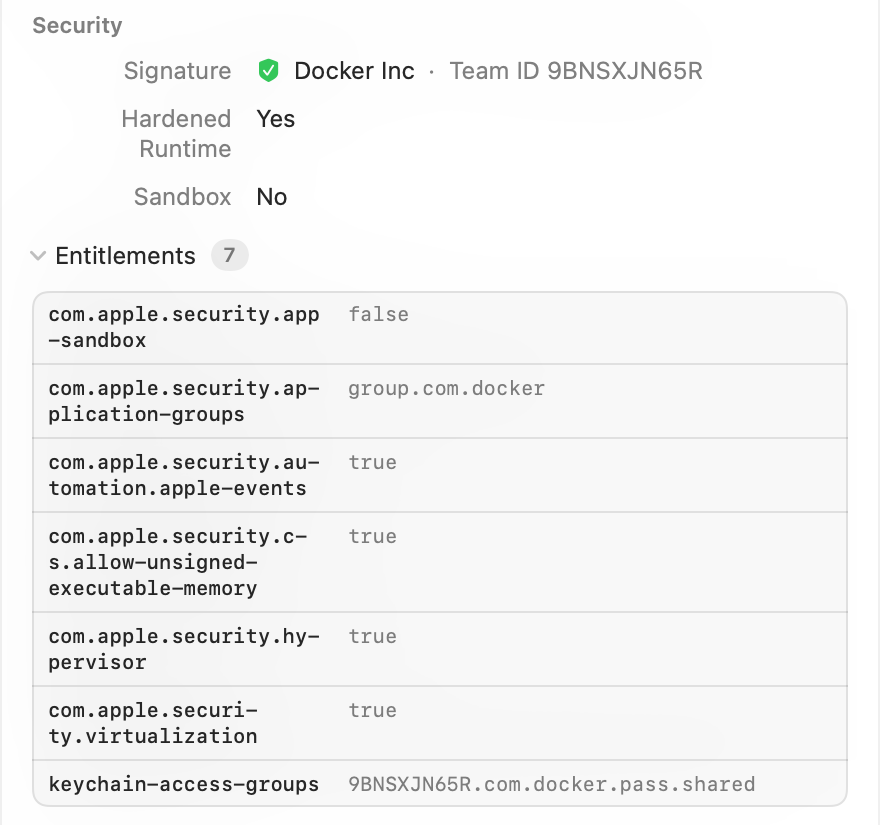
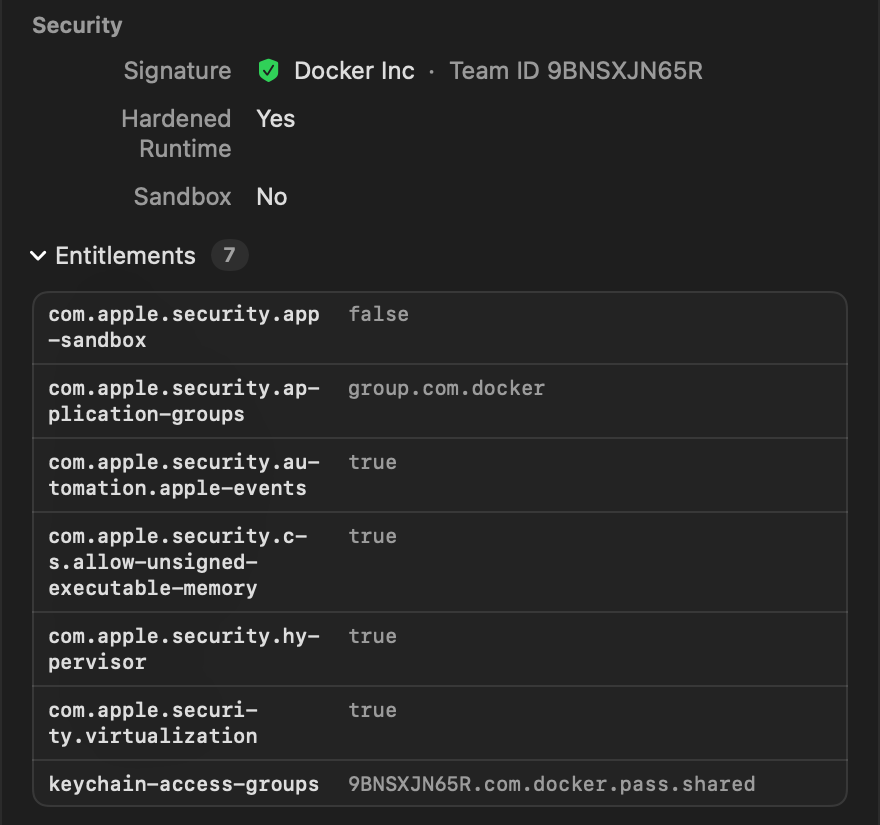
Parent process, launch agent and command line: why it is running
Identity names the parent process and the app that launched it. For a background process, Startup names the launch agent or daemon behind it, so this postgres turns out to be the Homebrew service sh.brew.postgresql@17. The executable’s path and the full command line sit underneath, and the environment is folded at the end of the drawer.
CPU time, memory peak, open files and ports: what it has used
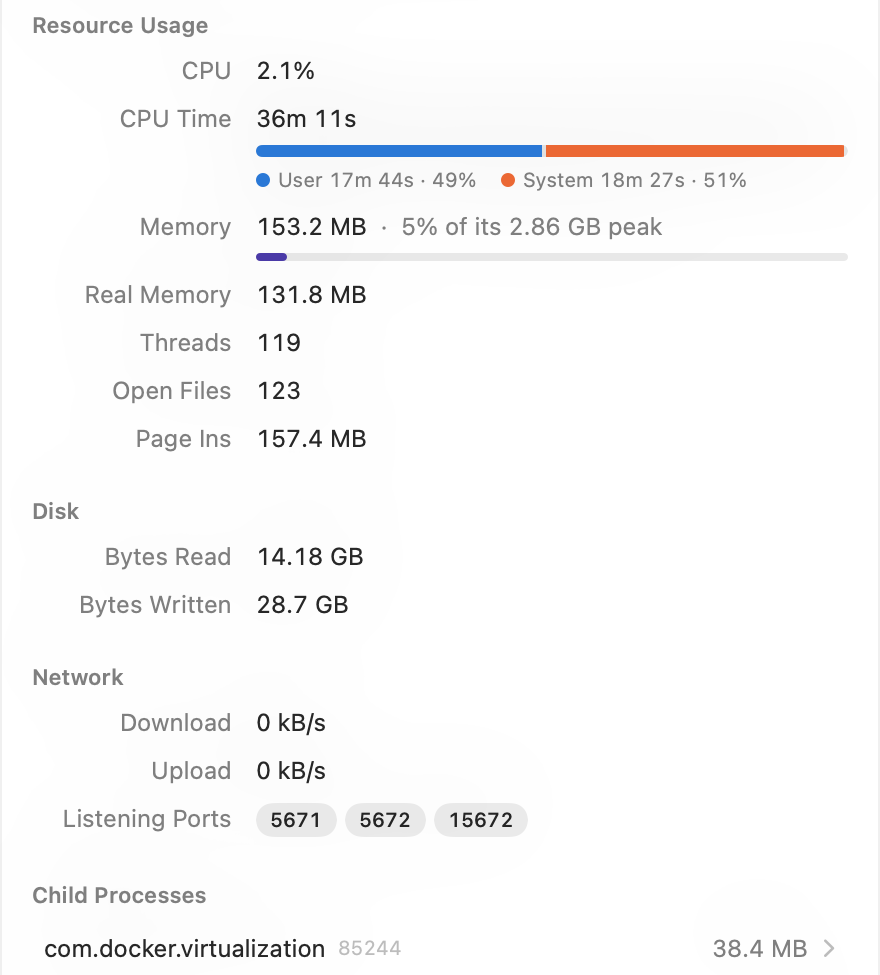
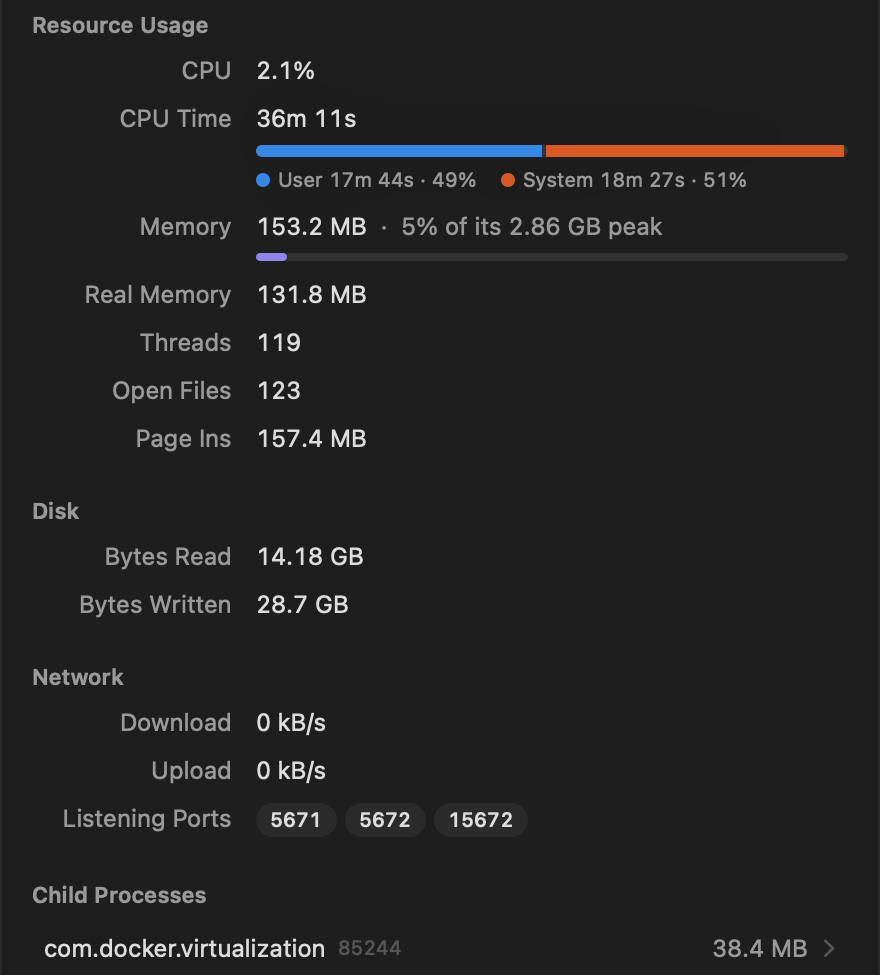
A percentage only tells you about this second. The drawer covers the process’s whole life: CPU time split into user and system, memory now against the most it has ever held, threads, open files, page-ins and bytes read and written. Below that are the ports it listens on and the child processes it started, each a click away. A chart of its CPU and memory runs while the drawer is open.
A Details card for every app, with its processes under it
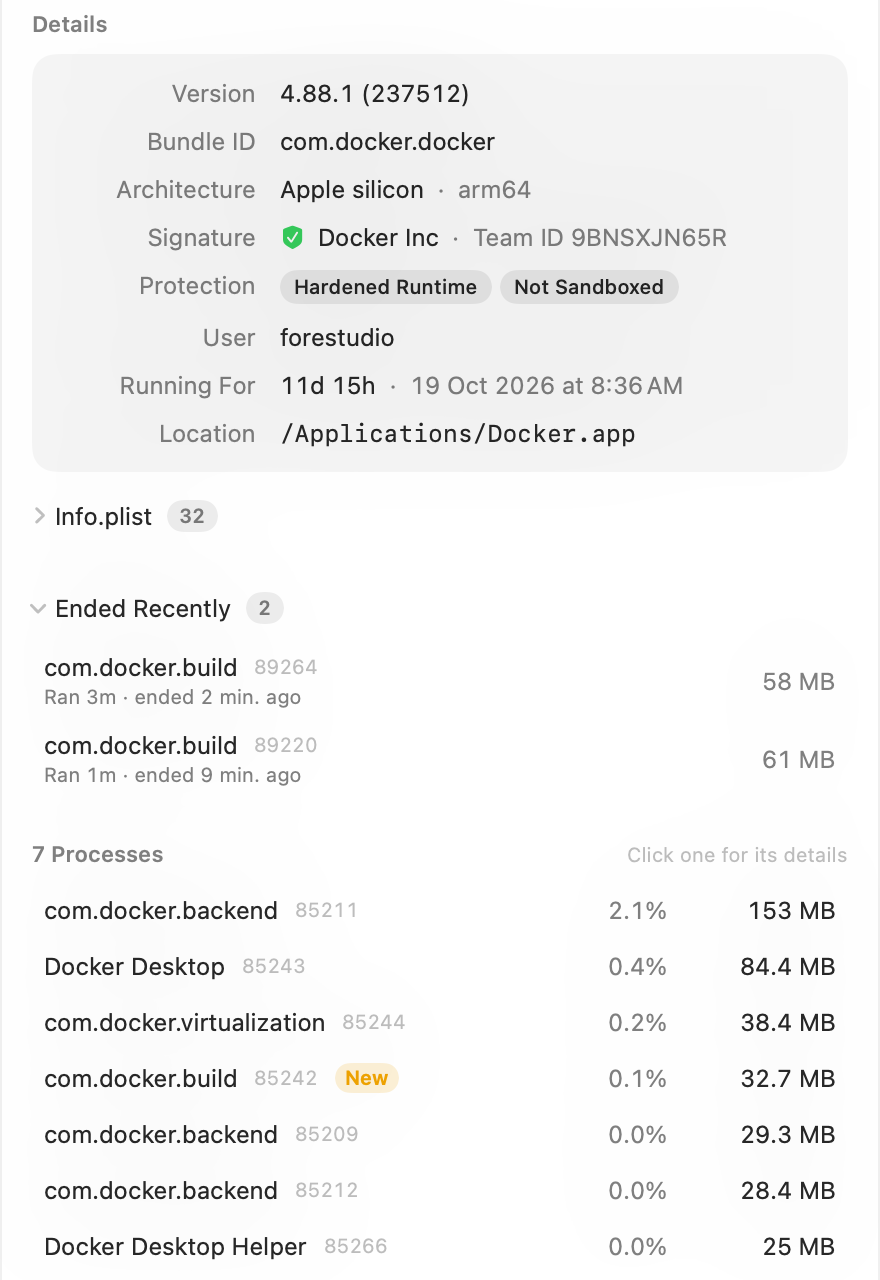
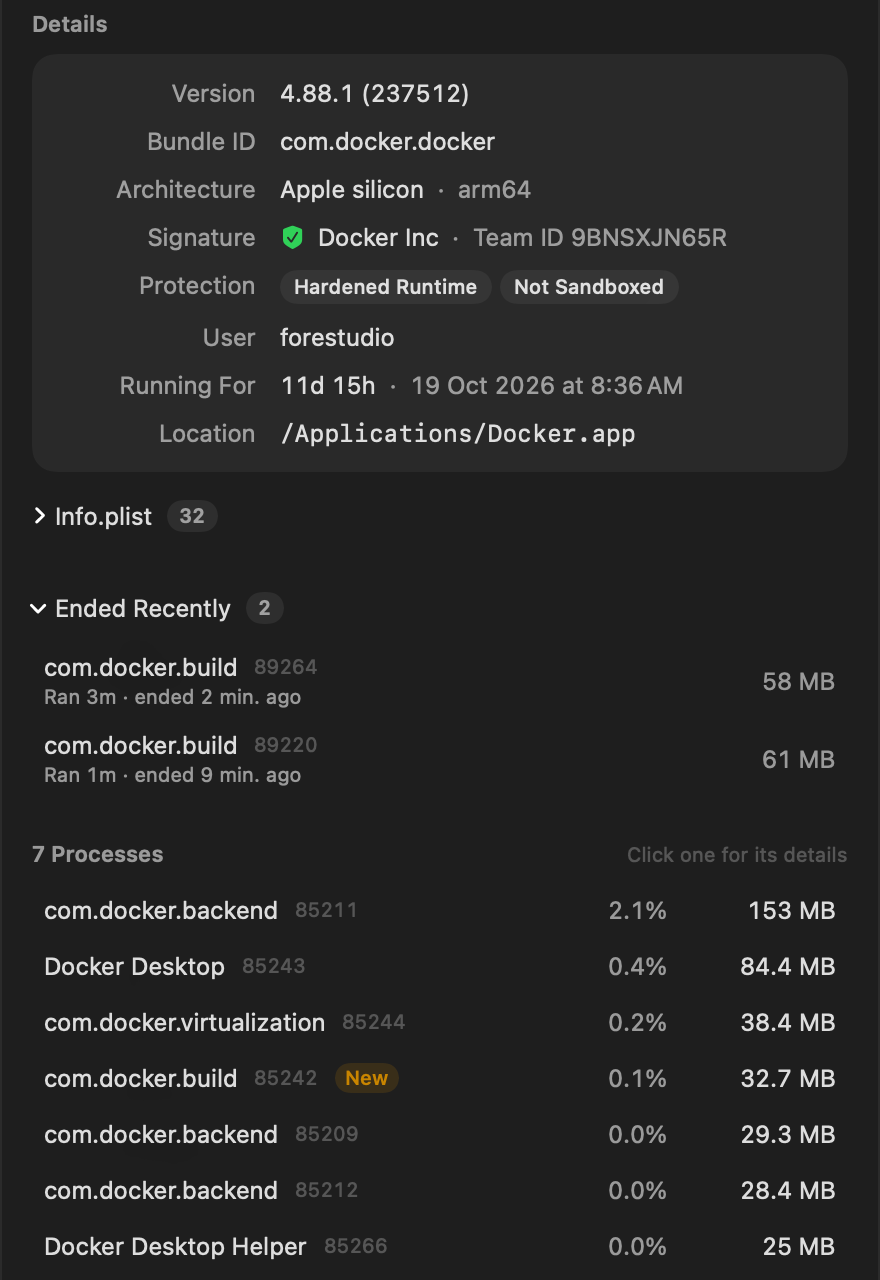
Open an app and its Details card gives the version, bundle ID, architecture, code signature, protection, what starts it and where it is installed, with the whole Info.plist one click away.
Its processes are listed underneath, and each opens its own drawer. One that started seconds ago carries a New mark, and Ended Recently keeps what ended in the last ten minutes, so a helper that crashed or a build that finished while you were away is still there to see.
Save it as CSV, or ask from Terminal
The share button in a drawer’s header offers Save as CSV and Copy as Text, with the Info.plist, entitlements, environment and processes included. vitals process gives the same details by name or PID. vitals top can now look back too: give it a time, and it tells you which apps used the most then.
$ vitals process node $ vitals process 60412 --json $ vitals process node --env --plist $ vitals top --at 14:02 $ vitals top --from 14:00 --to 15:30 Vitals keeps apps by the hour for two days and by the day after that, and the answer says which span it covers.
Ask your AI assistant about any process
Claude, Codex and Cursor can ask Vitals about any process through the process_details tool, and see the apps behind each peak in your history. The environment is never passed to them, since it can hold keys.
- What is this process called node, and which app does it belong to?
- Is the process using port 3000 signed, and what launched it?
- Which apps were behind the CPU spike at 14:02?
Five new columns, and regular expressions in the filter
A new Columns menu in the toolbar adds PID, User, Start Time, Version and Path to the app table. The filter also takes a regular expression between slashes, such as /helper|agent/.
Questions people ask
Is 1.9 a free update?
Yes. In Vitals, choose Check for Updates. Everything in it is part of every license.
Why do some processes show fewer details?
macOS shows a process’s command line, environment and lifetime totals only to the user it runs as. For processes that belong to macOS or another account, you still see the identity and code signature, and the CPU and memory through Vitals’ optional helper: turn on Full System Metrics in Settings → General.
Can it tell me whether a process is safe?
It gives you the facts to judge: the code signature, the parent process, where it lives and what it is doing. Vitals does not scan for malware.
Can it sample a process or take a spindump?
No. For a stack trace of a hung app, open Activity Monitor and press Sample.
Everything in 1.9
Vitals 1.9 is a free update. In Vitals, choose Check for Updates, or download it from vitalsmac.com.
- New Process Inspector. Activity Monitor gives a process a name and a number. Click any process in Vitals and its drawer tells you the rest: the app it belongs to, its code signature and Team ID, hardened runtime, sandbox and entitlements, its parent process and launch agent, its full command line and environment, its open files, listening ports and child processes. Click a parent or a child to follow it.
- New A process’s whole life, not just this second. CPU time since it started, split into user and system, memory now against its peak, threads, page-ins and bytes read and written, with a live chart of its CPU and memory while the drawer is open.
- New A Details card for every app. An app’s drawer now shows its version, bundle ID, architecture, code signature, protection, what starts it, how long it has run and where it is installed, with the whole Info.plist one click away.
- New What just started, and what just ended. Click any process in an app’s drawer to open its details. One that started seconds ago carries a New mark, and Ended Recently keeps what ended in the last ten minutes, with how long it ran, so a helper that crashed is still there to see.
- New Copy it, or save it as CSV. Any drawer can be copied as text for a bug report or saved as a CSV file in Downloads, with the Info.plist, entitlements, environment and processes included.
- New The same in Terminal and for AI assistants.
vitals processgives the same details by name or PID, as text or with--json.--envadds the environment and--plistthe Info.plist. Claude, Codex and Cursor get them through theprocess_detailstool, without the environment, since it can hold keys. - New The apps behind a spike.
vitals top --at 14:02or--from 14:00 --to 15:30tells you which apps used the most at that time, and an assistant reading your history sees the apps beside each peak. - Improved Five new columns. PID, User, Start Time, Version and Path can join the app table, from a new Columns menu in the toolbar.
- Improved Regular expressions in the filter. Type a pattern between slashes, such as
/helper|agent/.