Changelog/Vitals 1.11
Vitals 1.11: Vitals for developers

Quick answer
Vitals 1.11 is for developers. The Projects tab is now Developer, with five sections: Projects, Ports, Open Files, Containers and Homebrew. It shows what is running by the project it came from, every port in use with what holds it and who can reach it, the apps keeping a disk from ejecting, and what Homebrew installed and never runs. The same answers are in the vitals command and for your AI assistant. Nothing is stopped, quit or uninstalled until you say so.
One tab for what you are running
Developer takes the place of the Projects tab, and Containers moves into it. Five sections sit along the top, each with a count: Projects, Ports, Open Files, Containers and Homebrew.
Projects lists every process under the project it was started in, with the app that started it, such as Terminal or Codex, its ports, and its CPU and memory. A dev server that has sat idle is pointed out, with Stop It… and what stopping it frees. Open a project to see each process under its parent.
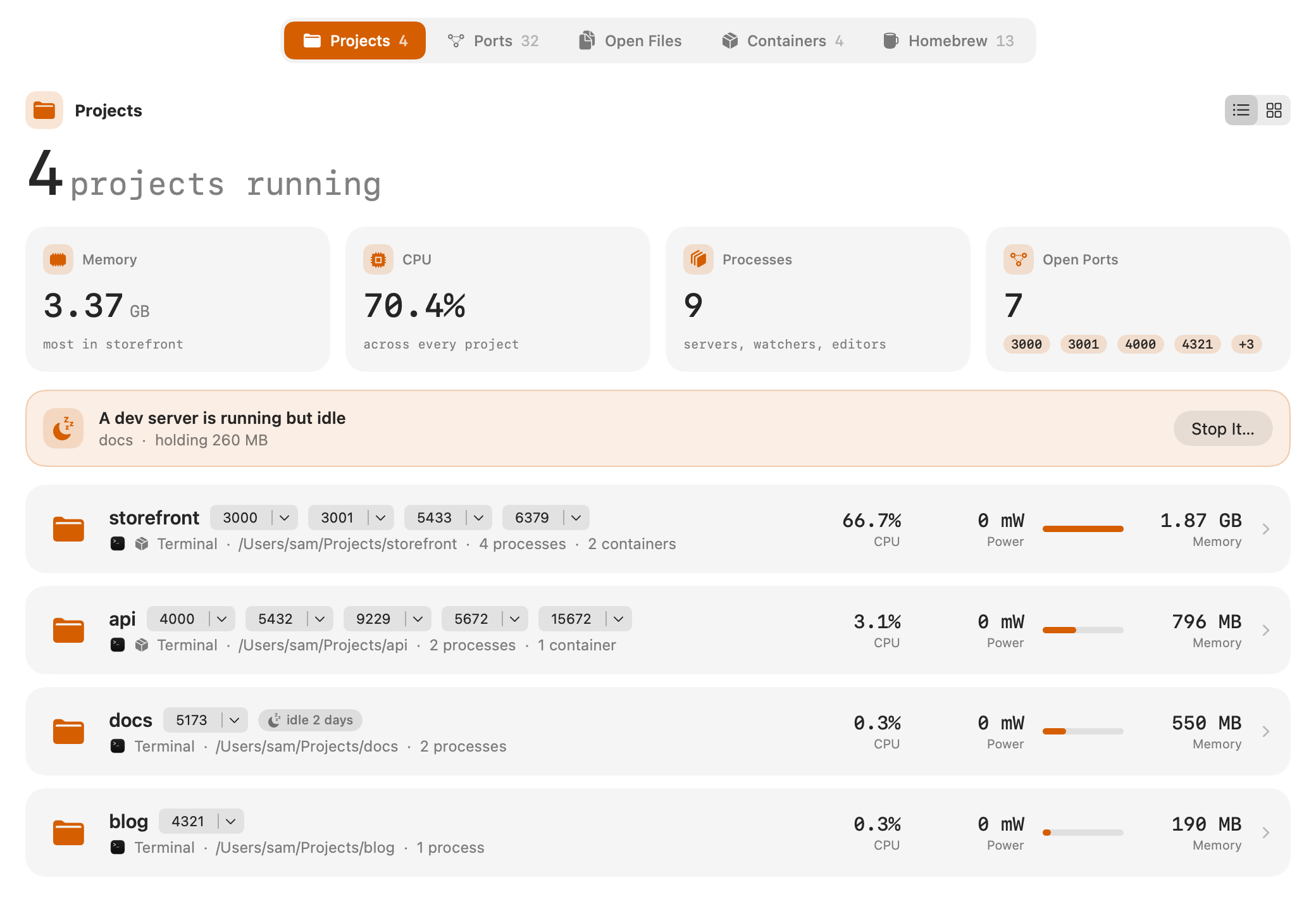
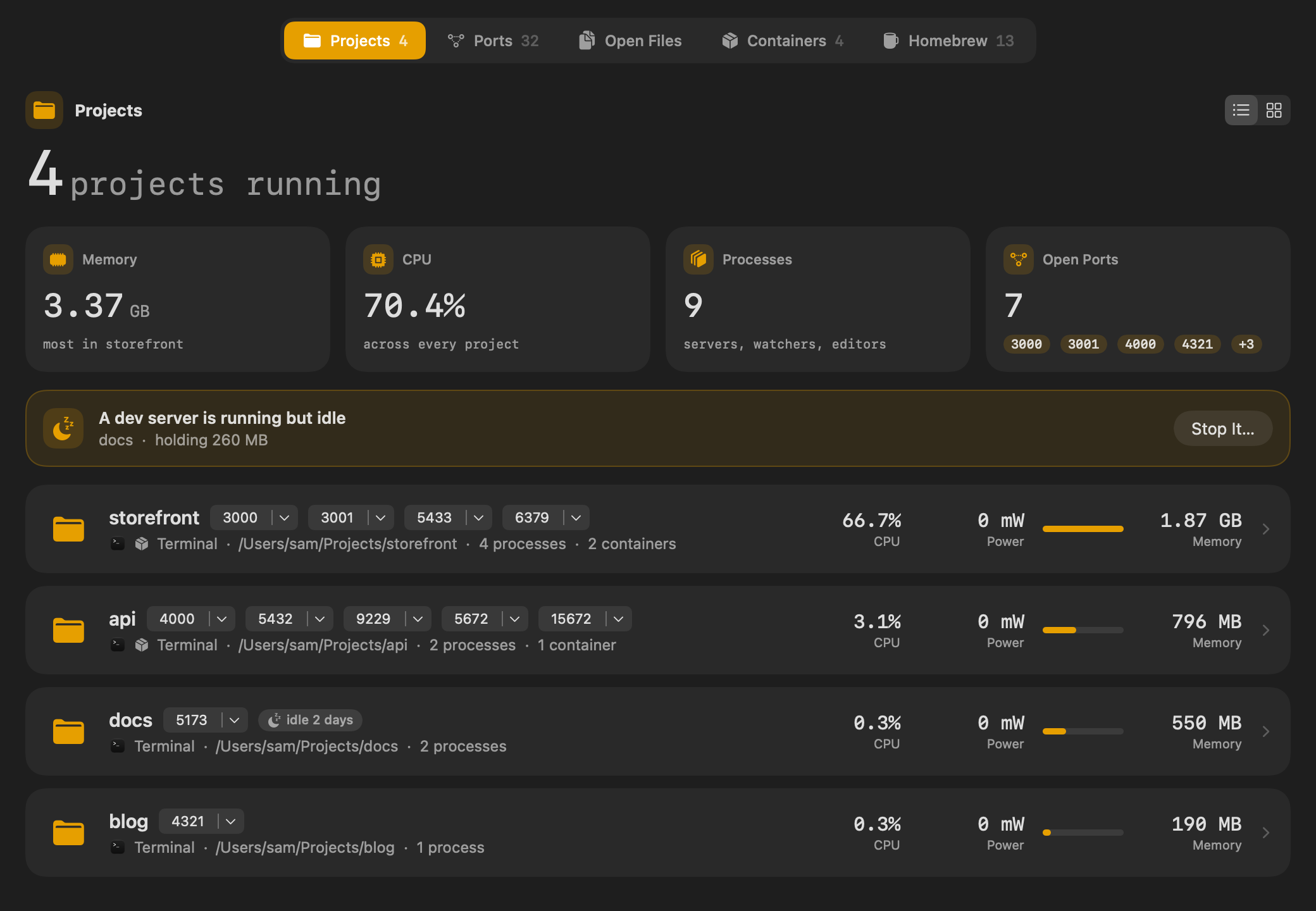
The Containers section appears when Docker or another container engine is running.
Every port in use, and who can reach it
Ports lists every port something on the Mac is listening on, in groups: your projects, idle dev servers, Homebrew services, and apps, programs and macOS. Each row names what holds the port, where it runs from and how long it has been running.
Each also says who can reach it. This Mac means only programs on this Mac can connect. Network means other devices on your network can, which is worth knowing about a dev server.
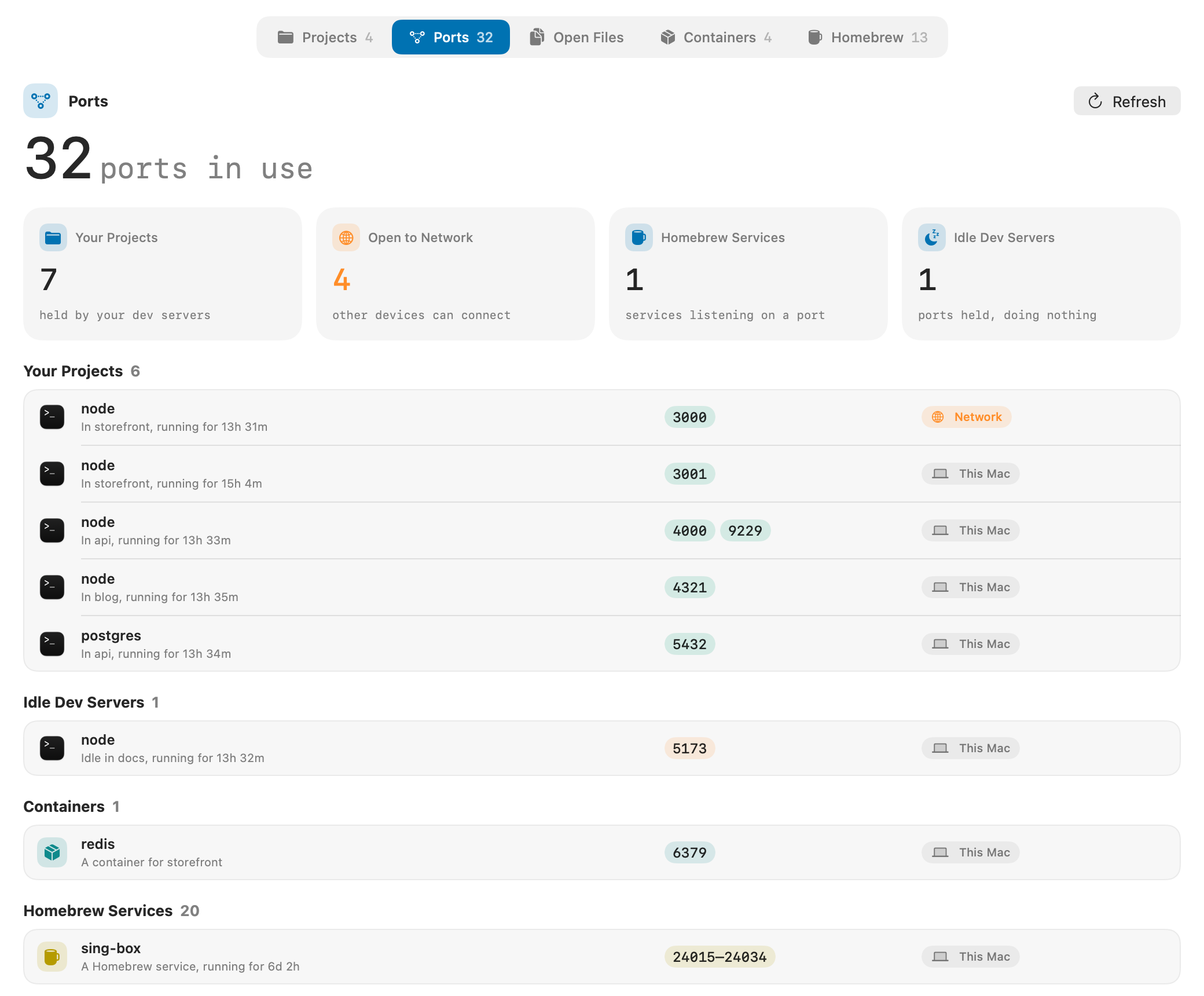
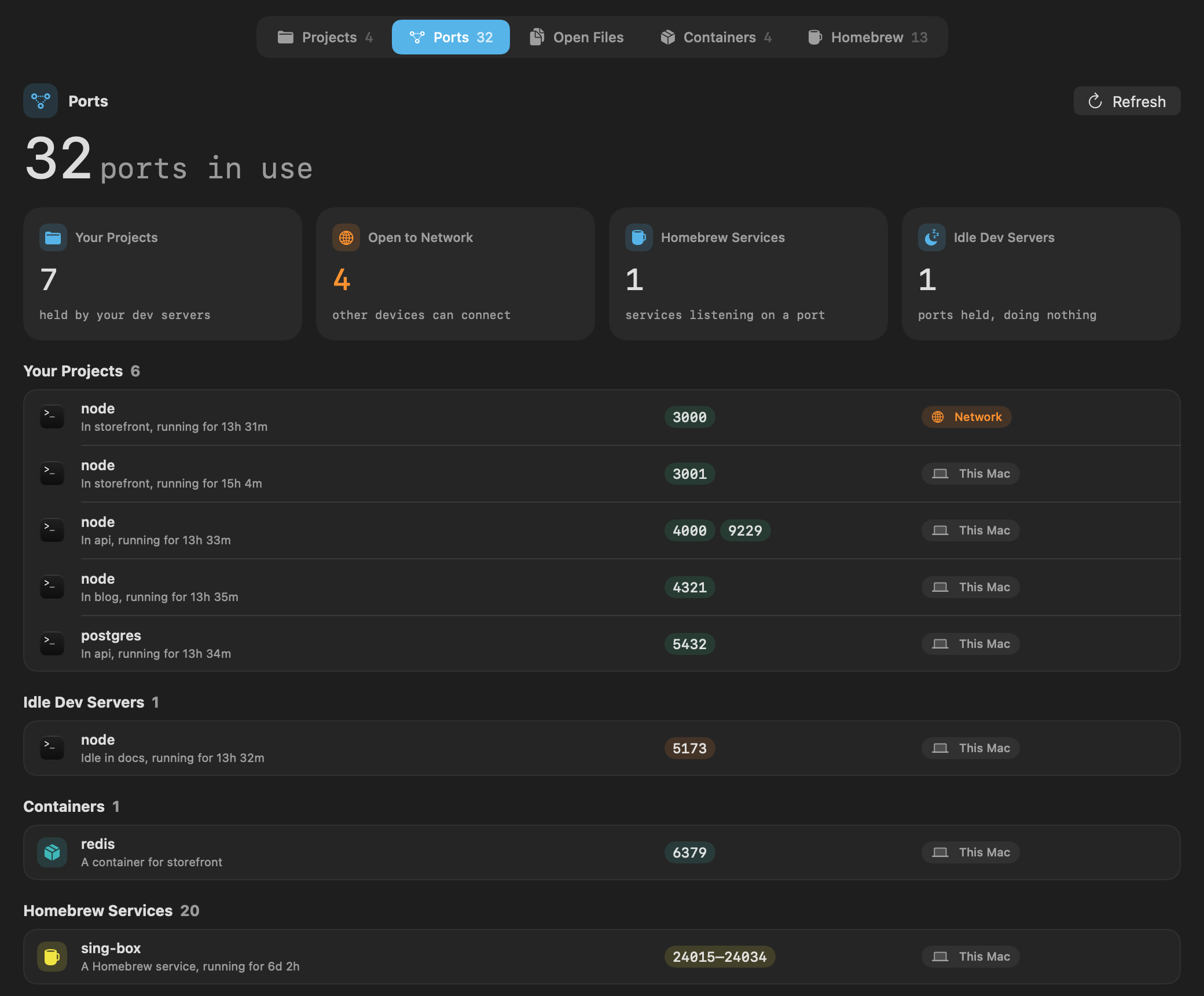
- Open in Browser opens a port at localhost.
- Quit stops what holds a port, after asking.
- A range held by one program, such as 24015 to 24034, is one row.
Eject the disk that will not eject
macOS says a disk is in use and does not say by what. Open Files shows every disk as a card, with how full it is, how many files are open on it, and In Use or Ready to Eject. Under the disk are the apps holding it, with the files each has open and which are open for writing.
- 01 Open the Developer tab and choose Open Files. Vitals picks the first external disk for you.
- 02 Click Eject. If the disk is in use, Vitals names the apps it will quit and asks.
- 03 Say yes, and it quits them the way ⌘Q does, ejects the disk and tells you it is safe to unplug.
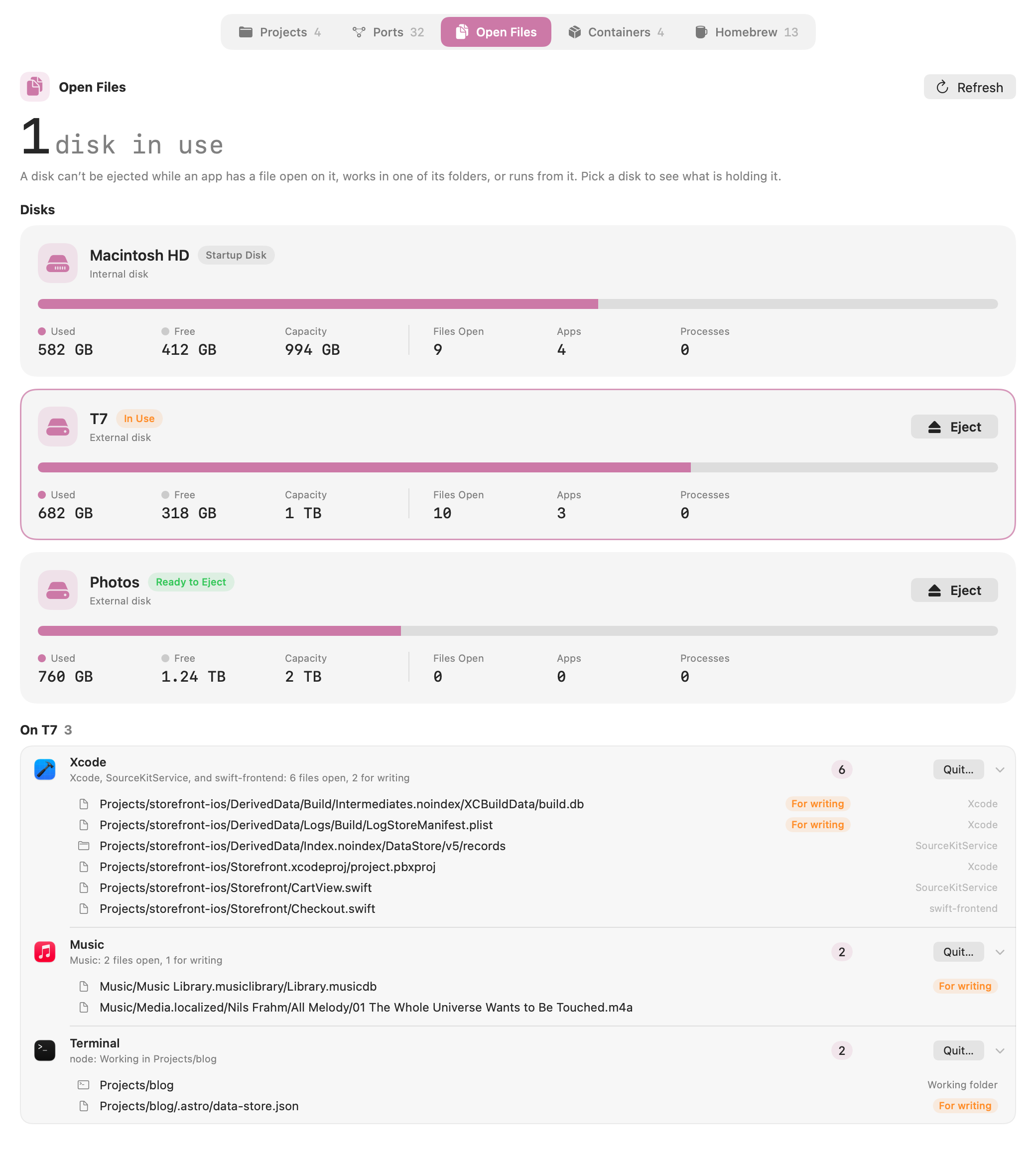
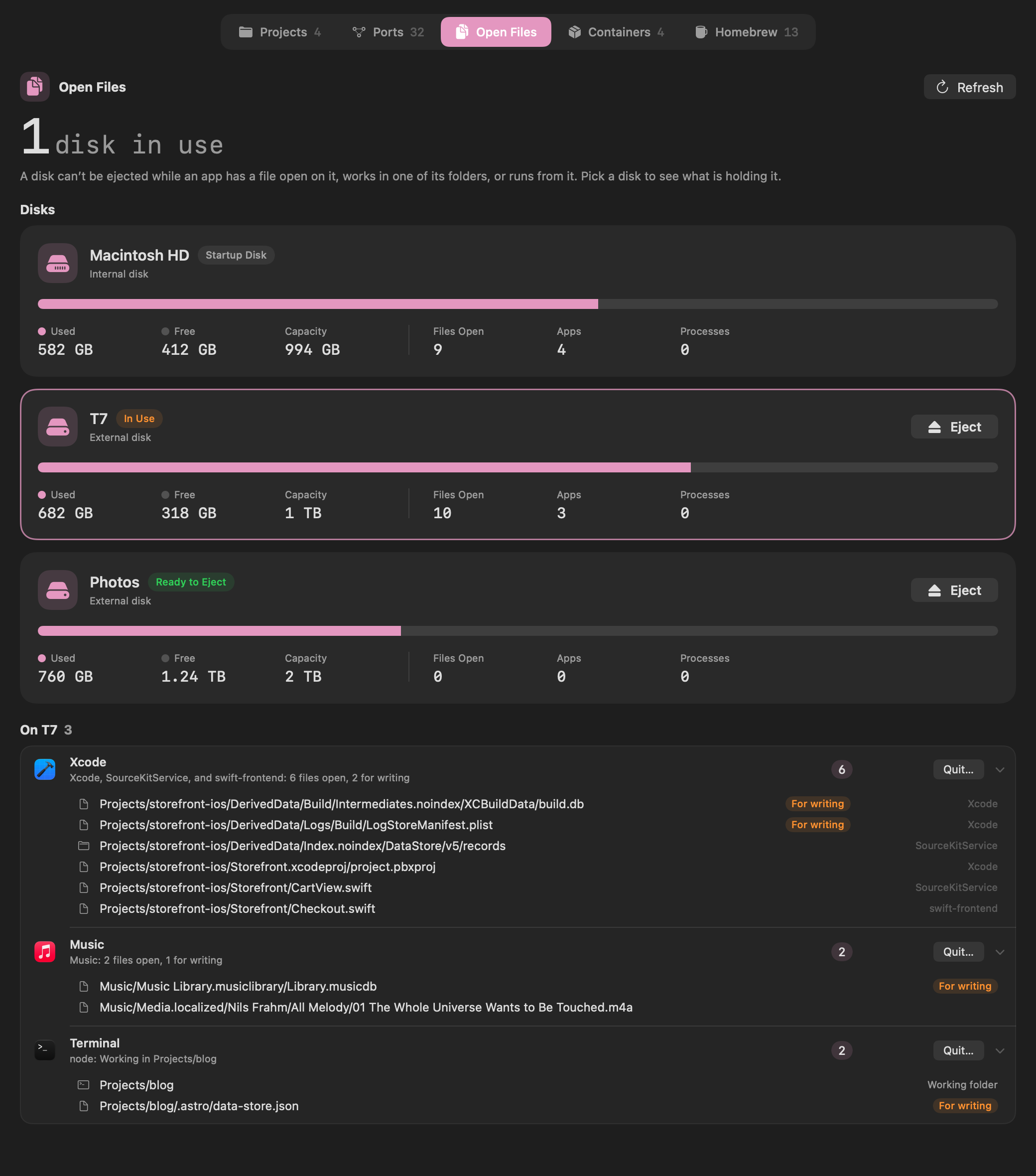
To find one file, press ⌘F and type part of its name. Whatever has it open is listed, on any disk, which also answers the Trash saying an item is in use.
Homebrew: what is installed, and what never runs
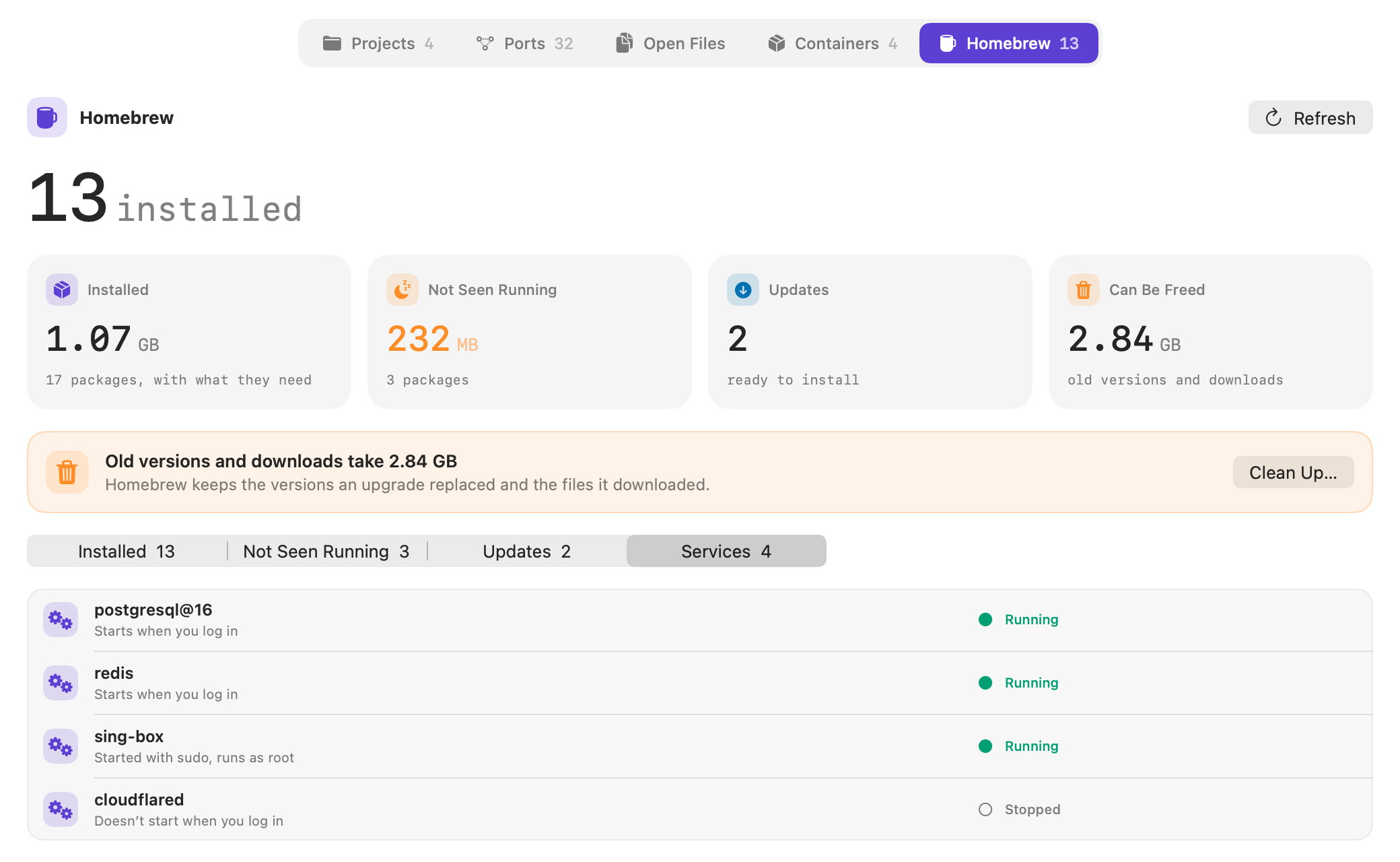
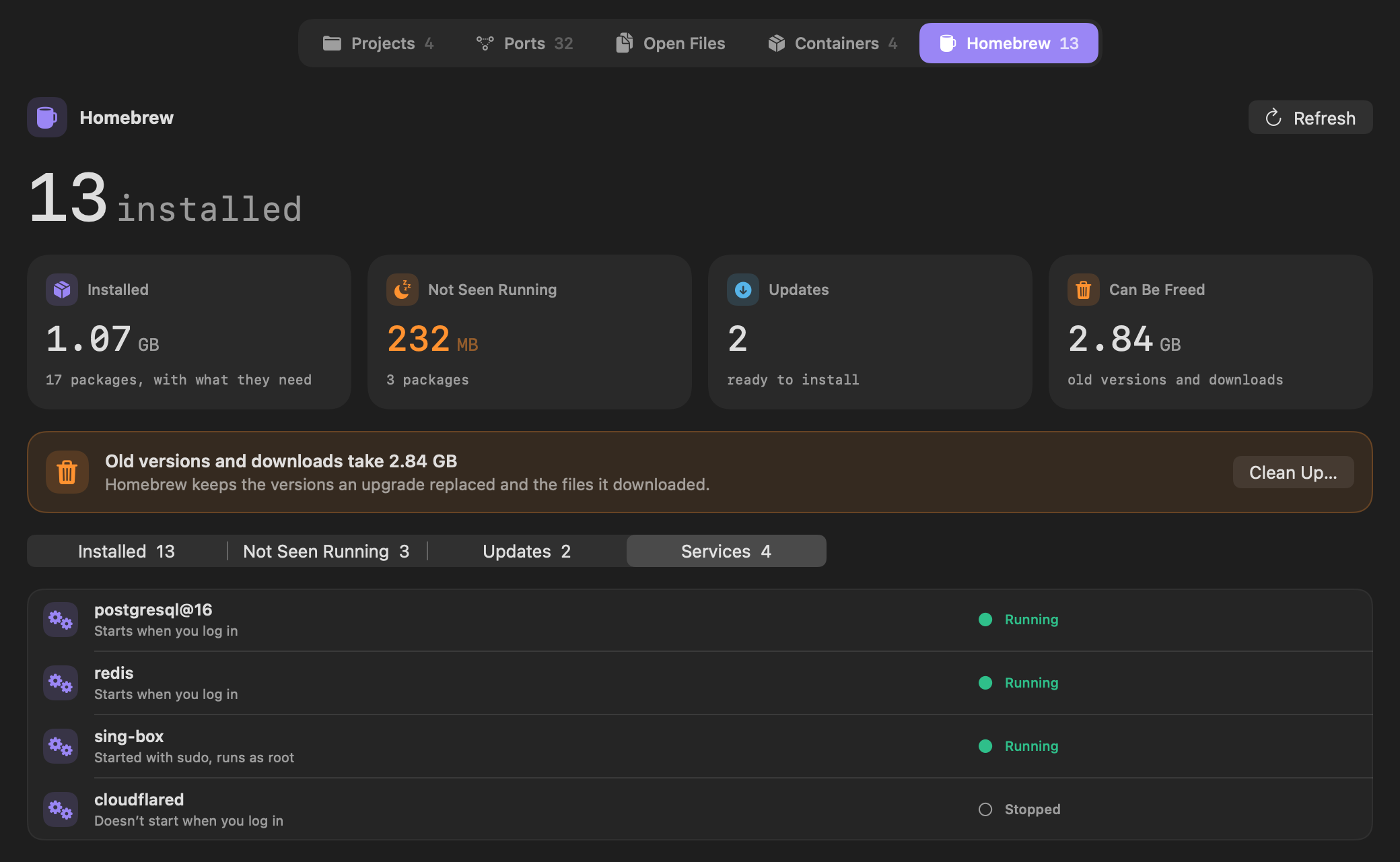
Homebrew lists the packages you asked for by name, each with its version, its size on disk and when Vitals last saw one of its programs run. Not Seen Running is the list of packages you installed and never ran, with the space they take together.
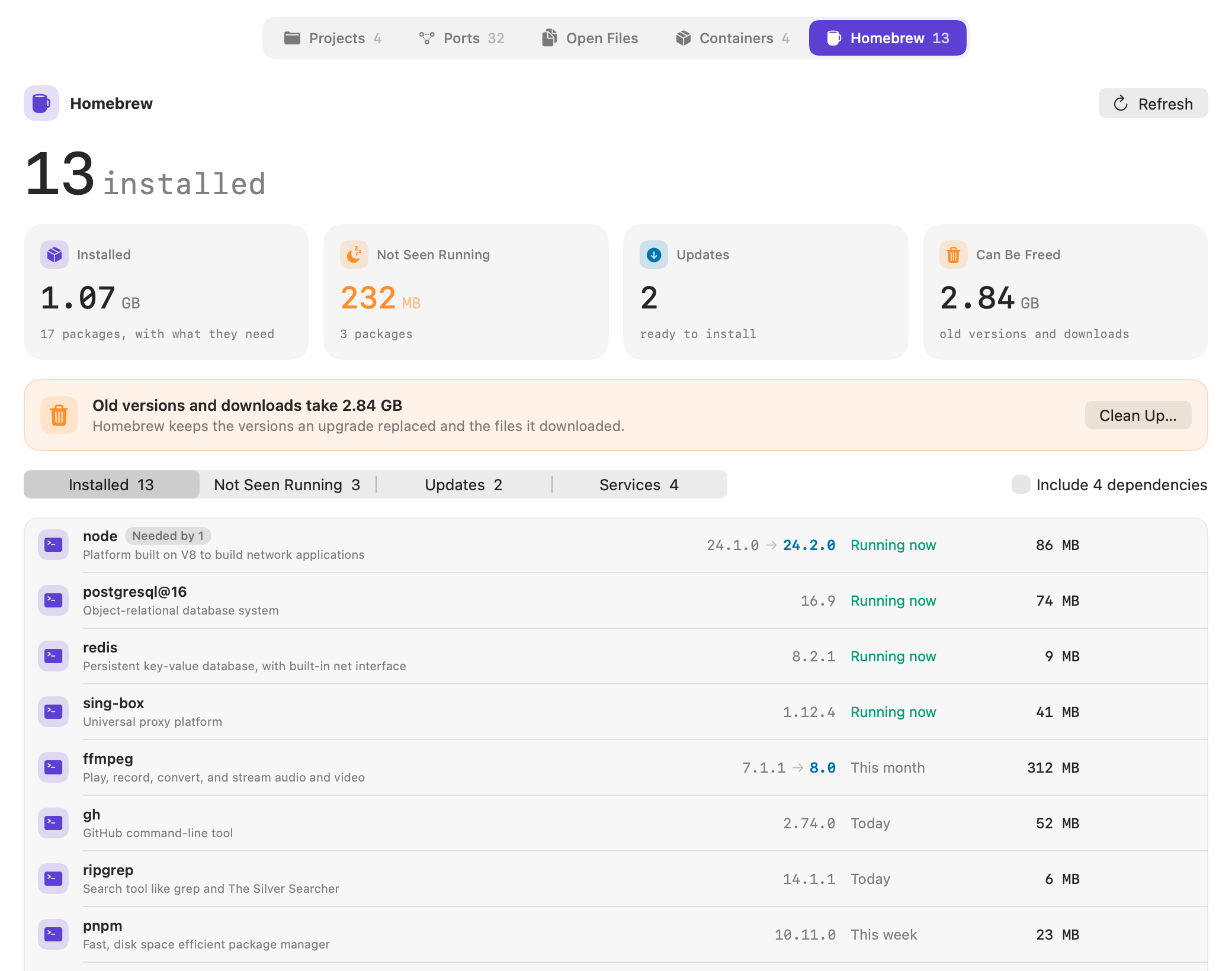
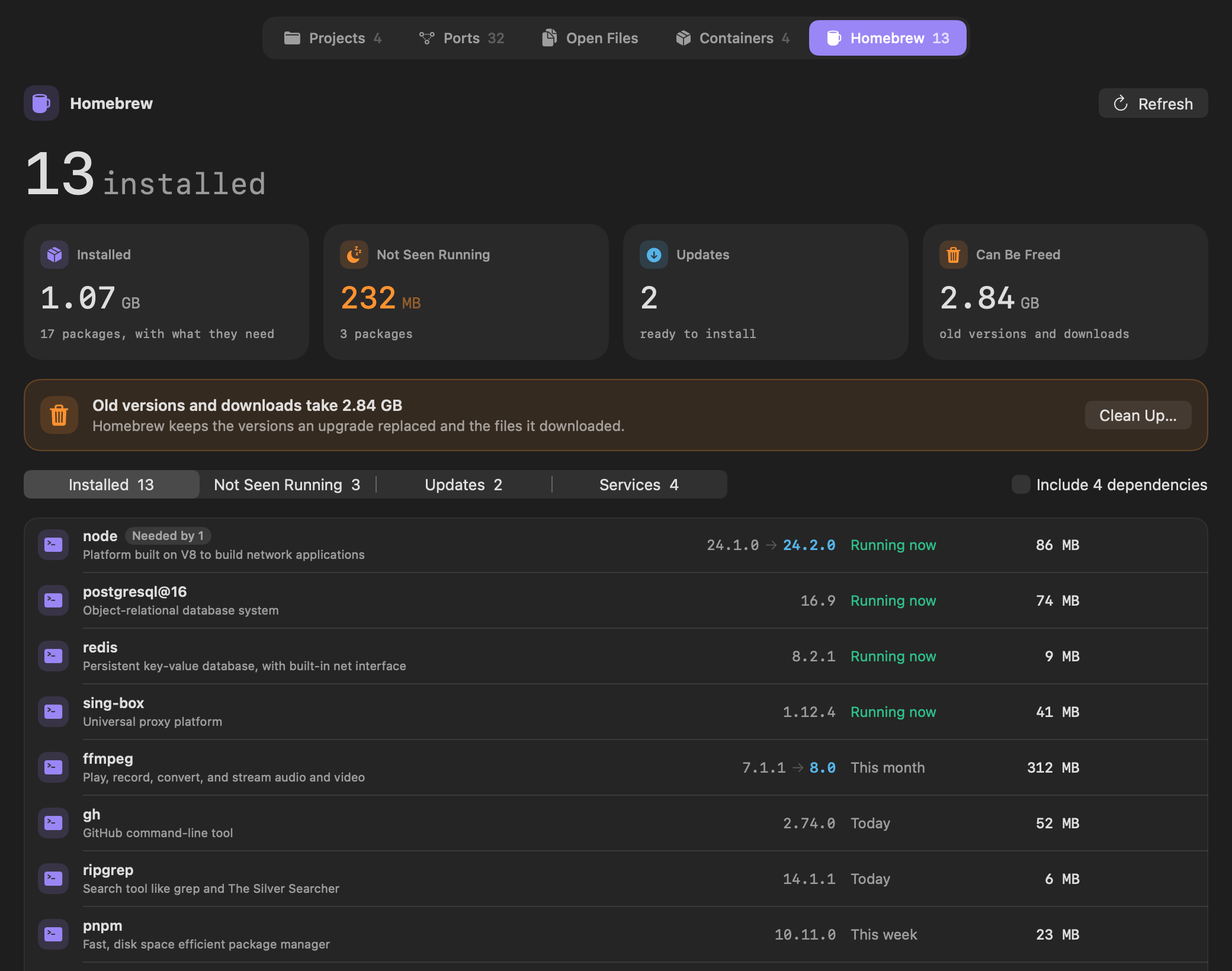
- Updates shows the version installed and the new one, with Upgrade on each and Upgrade All… for the lot.
- Can Be Freed is what Homebrew’s old versions and downloads take. Clean Up… removes them.
- Include dependencies adds the packages others need, each with what needs it.
Homebrew services, with Start and Stop
Services lists every Homebrew service with whether it is running, whether it starts when you log in and whether it runs as root. Start, Stop and Restart are on each, and a service’s ports are in the Ports section.
From the menu bar
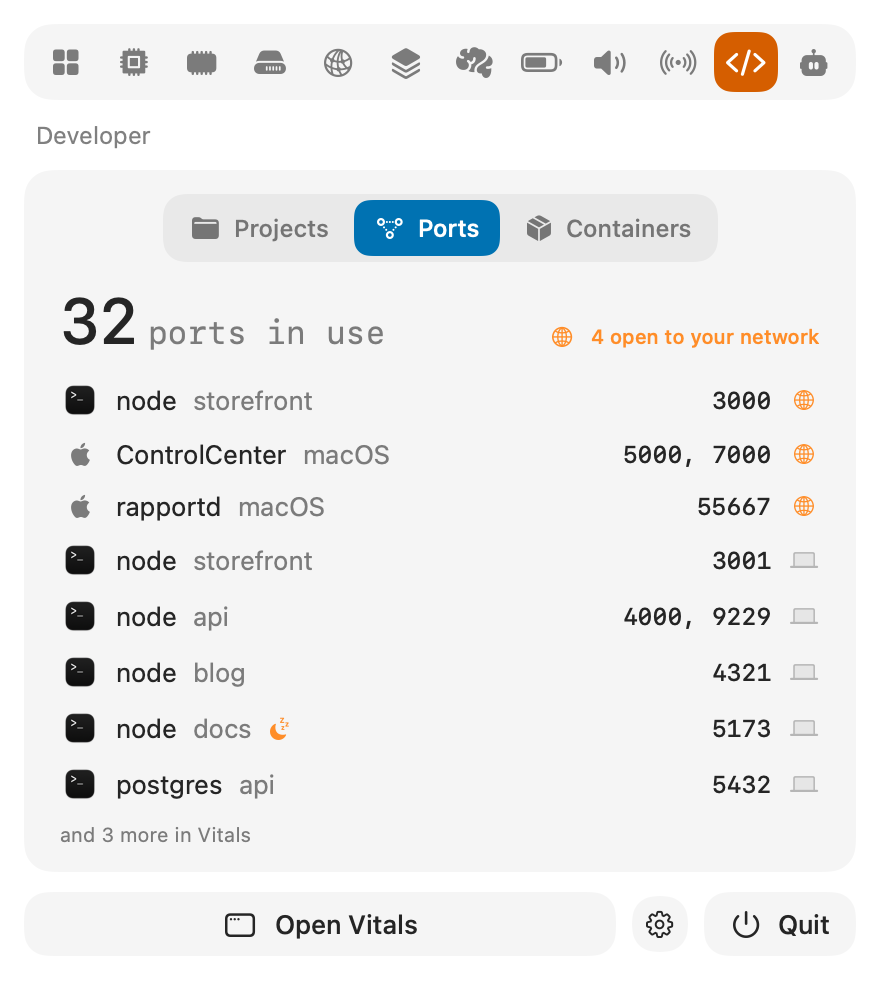
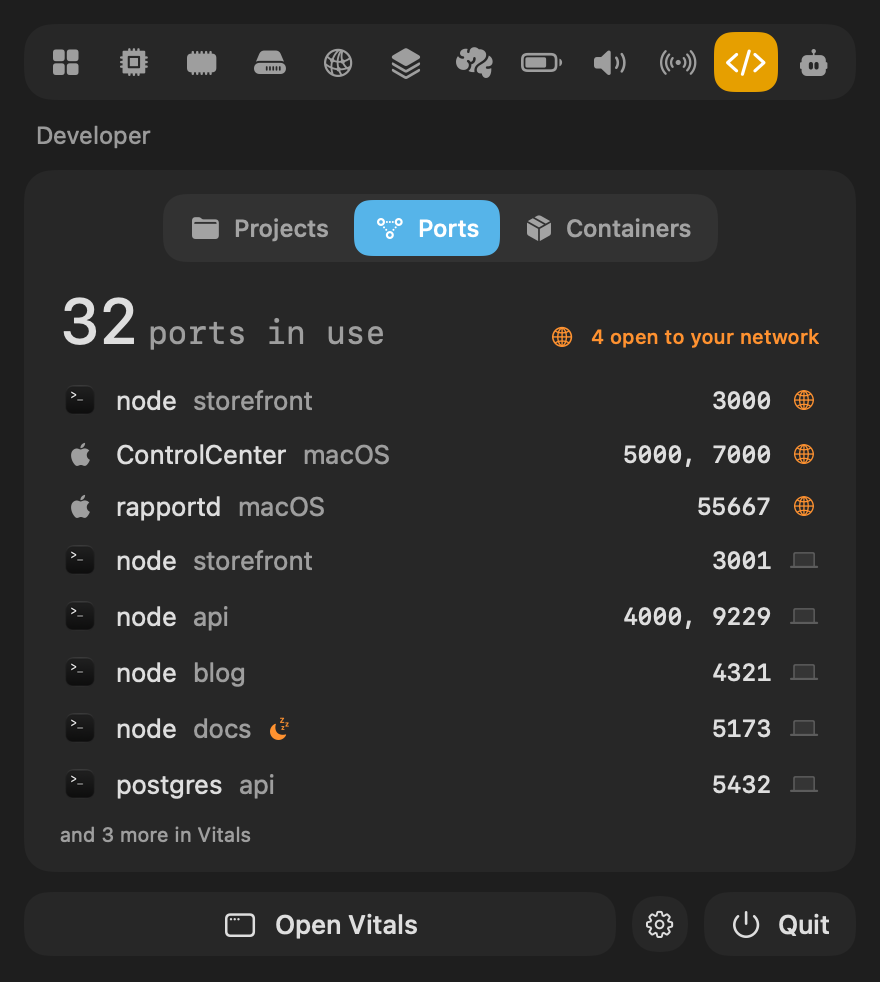
The dropdown’s Developer tab has Projects, Ports and Containers. Ports that other devices can reach come first, an idle dev server carries a moon, and a click on a row opens it in the window.
Stuck commands and idle terminals
A command a coding agent started sometimes hangs, and the agent waits on it without saying so. When one has used no CPU and no disk for ten minutes, its session is marked stuck in the Agents tab, with Quit beside the command. A dev server or a tool server the agent started is never counted as stuck.
Terminal windows left open with nothing running, and nothing typed or printed for an hour, are listed under Projects as idle terminals, with End on each.
A memory report, and Export on every tab
Two ways to take what Vitals shows somewhere else.
- Memory Report, in an app’s export menu, writes a folder to Downloads for the app’s developer: the app’s memory now and at its highest, by the hour and by the day, each of its processes, a chart, and the figures as CSV. You can add the app’s lines from the macOS log. Vitals sends nothing; the folder is yours to attach to a bug report.
- Export is in the toolbar of every tab now, with Save as Image and Copy Image. The Agents image leaves out your sessions and shows an account’s email as its first letter.
In Terminal
The vitals command has the new sections too, as a table or as JSON with --json.
$ vitals ports $ vitals files $ vitals homebrew $ vitals homebrew --not-seen $ vitals homebrew --updates Ask your AI assistant
Claude, Codex and Cursor can ask Vitals about ports, open files and Homebrew through three new tools, ports, open_files and homebrew. Each has its own switch under What to Share in Settings → Integrations. An assistant that checks the ports first can use the dev server already running instead of starting another.
- What is on port 3000, and can other devices reach it?
- What is keeping my external disk from ejecting?
- Which Homebrew packages have I never run?
- Is a dev server for this project already running?
Choose what Vitals reads
Settings has a new Readings page with three switches: Read Temperatures and Fans, Read Containers and Watch for Idle Dev Servers. Turn one off and Vitals stops reading it altogether, which suits a Mac where another app runs the fans, or one that never uses Docker.
Questions people ask
Is 1.11 a free update?
Yes. In Vitals, choose Check for Updates. The Developer tab is part of every license.
I am not a developer. Does anything change for me?
The rest of Vitals is as it was. Open Files is useful to anyone with an external disk that will not eject, and Ports shows which programs on your Mac other devices can reach.
Where did the Projects and Containers tabs go?
Both are sections of the Developer tab now, along its top. The dropdown has them under its Developer tab too.
Does Vitals change anything in Homebrew on its own?
No. It reads what brew reports. It runs a brew command only when you click one: Upgrade, Clean Up, Uninstall, or Start, Stop and Restart on a service.
Why does Open Files not show a file I know is open?
Some apps read a file into memory and close it straight away, so nothing holds it. Files held by macOS itself, such as Spotlight’s, need Full System Metrics turned on in Settings → Permissions.
Can it quit something by mistake?
Quit Them and Eject names what it will quit and waits for your yes. Apps are quit the way ⌘Q does, so one with unsaved work can still ask you to save.
Everything in 1.11
Vitals 1.11 is a free update. In Vitals, choose Check for Updates, or download it from vitalsmac.com.
- New A Developer tab. Projects is now Developer, with five sections along the top: Projects, Ports, Open Files, Containers and Homebrew. The dropdown has Projects, Ports and Containers.
- New Ports. Every port in use on the Mac, with what holds it: one of your projects, an app, a Homebrew service or macOS. Each says who can reach it, only this Mac or the network, and has Open in Browser and Quit. A dev server that has sat idle is pointed out.
- New Open Files. Every disk as a card, with the apps that have files open on it and whether it is ready to eject. When a disk will not eject, Quit Them and Eject names what holds it, asks, quits them and ejects. Filter by a file's name to see what has it open.
- New Homebrew. Every package with its size and when it last ran, the ones never seen running with the space they take, updates with Upgrade and Upgrade All, what a cleanup would free, and each service with Start, Stop and Restart.
- New Whose processes they are. A project names the apps that started its processes, such as Codex or Terminal, and lists each process under its parent. A process with others under it folds, and Filter finds a project by its name, a process or a port.
- New Stuck commands and idle terminals. A command a coding agent started that has done nothing for ten minutes is marked stuck on its session, with Quit beside it. Terminal windows with nothing running and nothing typed for an hour are listed under Projects, with End.
- New Memory Report. An app's export menu can write a report for the app's developer: its memory now and at its highest, by the hour and by the day, each of its processes, a chart, the figures as CSV and, if you choose, the app's lines from the macOS log. It is saved as a folder in Downloads, and Vitals sends nothing.
- New Export on every tab. The toolbar's Export button is on each tab: Save as Image or Copy Image, of the tab as the window shows it. The Agents image leaves out your sessions and shows an account's email as its first letter.
- New In the terminal and for your assistant. vitals ports, vitals homebrew and vitals files give the same answers in Terminal. Claude, Codex and Cursor can ask about every port and who can reach it, Homebrew, open files, battery life and the data moved by day or week.
- New Settings → Readings. A page for what Vitals reads: Read Temperatures and Fans, Read Containers, and Watch for Idle Dev Servers. Turn one off and Vitals stops reading it altogether, for a Mac where another app runs the fans or where Docker is not used.
- Improved In the dropdown, an opened app's processes line up under the app's own columns, each with the name the window gives it, and a click opens it in the Process Inspector.
- Improved On tabs with a list of apps, the charts and cards fold away while you scroll the list and come back at its top.
- Improved Vitals uses less memory after long use. Memory left behind each time you changed tabs is now freed.
- Fixed When an assistant asked to quit something, answering Quit or Don't Quit brought the Vitals window to the front. It now leaves you where you were.
- Fixed In Settings, the menu bar preview could show two figures on top of each other.