Changelog/Vitals 1.13
Vitals 1.13: Eight themes

Quick answer
Vitals 1.13 brings eight themes. Terminal, Amber, Midnight, Plum, Neon, Champagne, Paper and Vitals’ own each set the window’s color, every chart’s colors and the font of the numbers, in the window, the dropdown, Settings and the pictures you export. Alerts in the notch gain Mute, for one app, one kind of alert or all of them, and can stay quiet during a Focus. A menu bar item can show its reading as a bar, and you can remove the Vitals item once your readings have items of their own.
Eight themes, each with its own colors and font
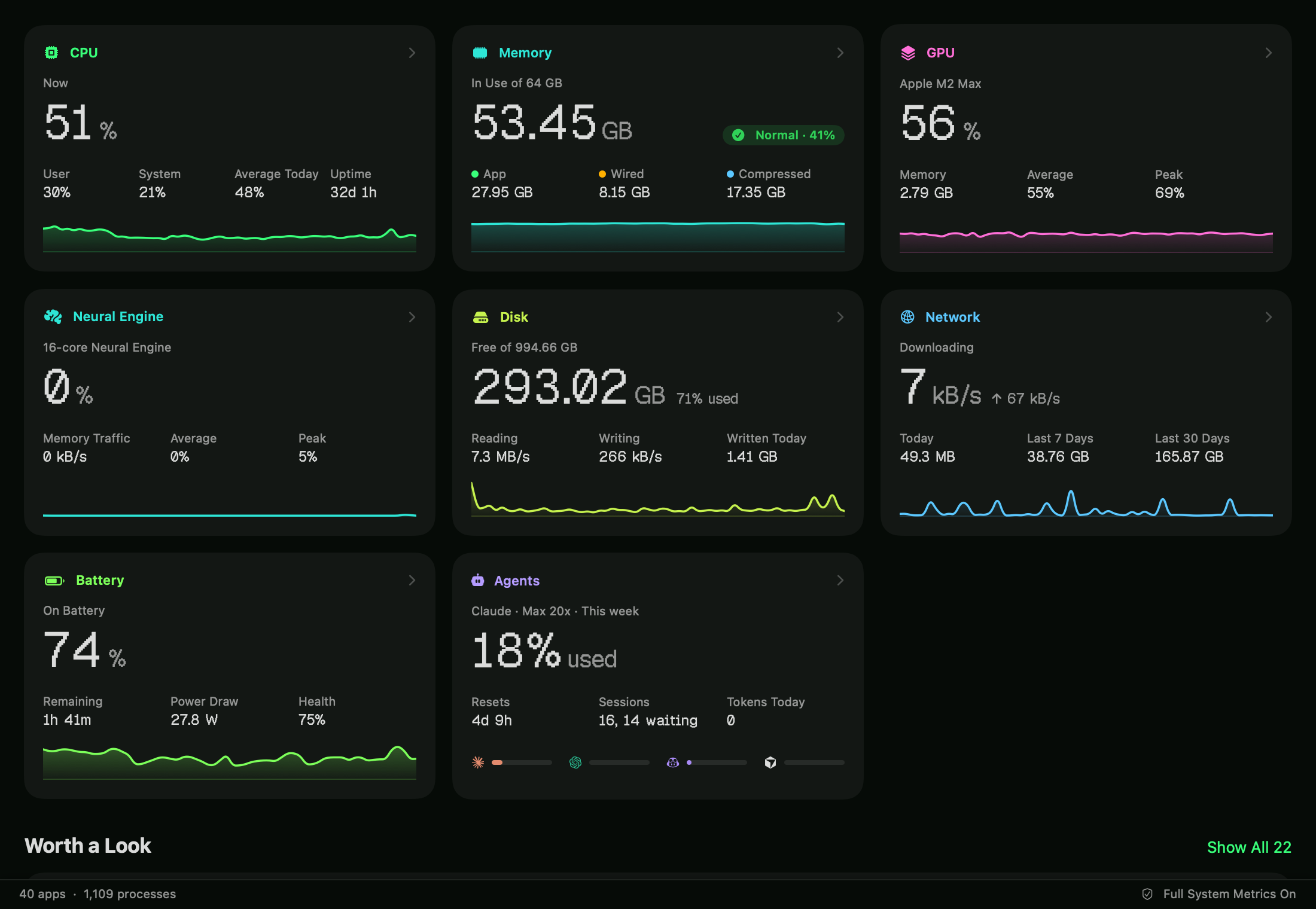
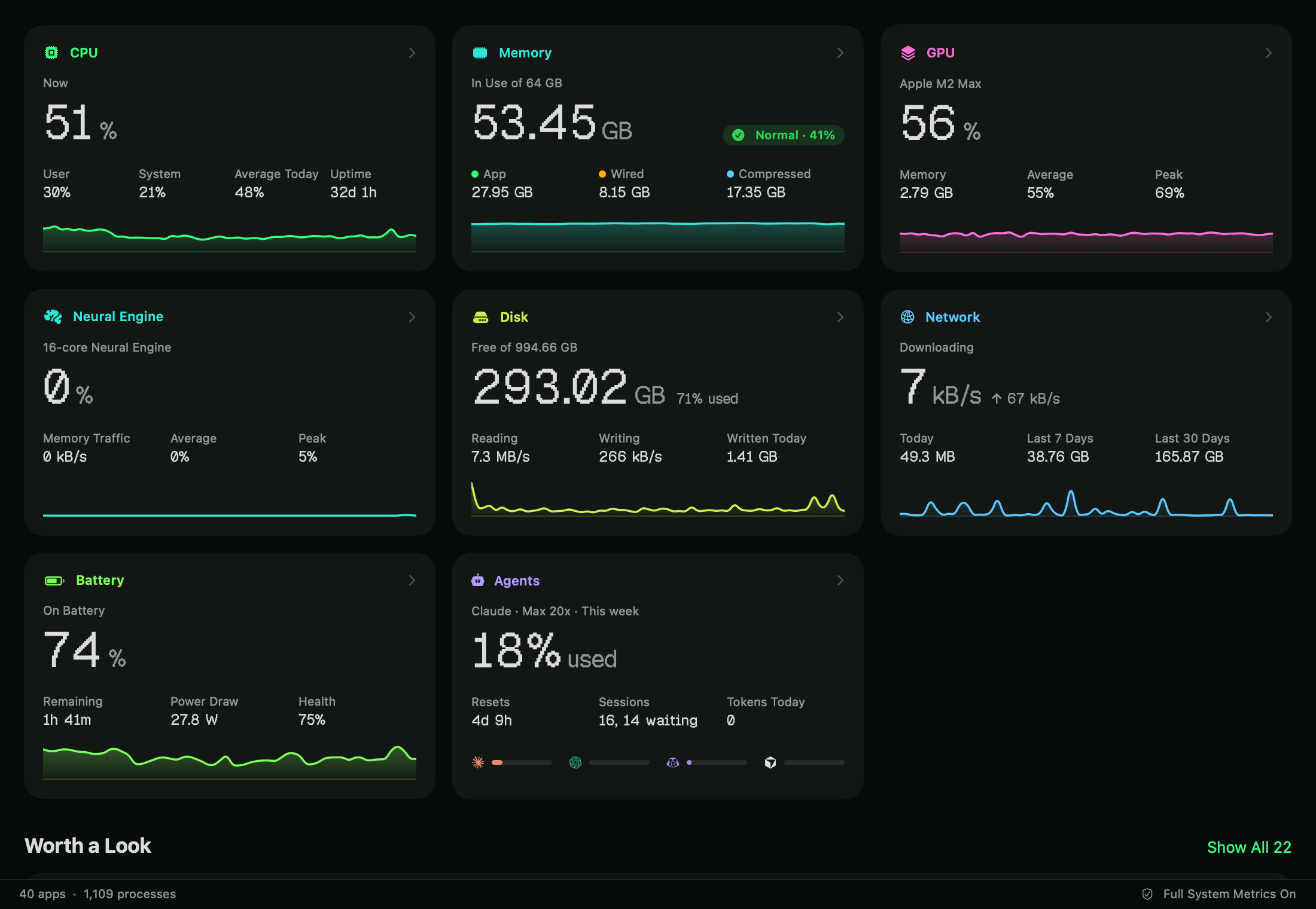
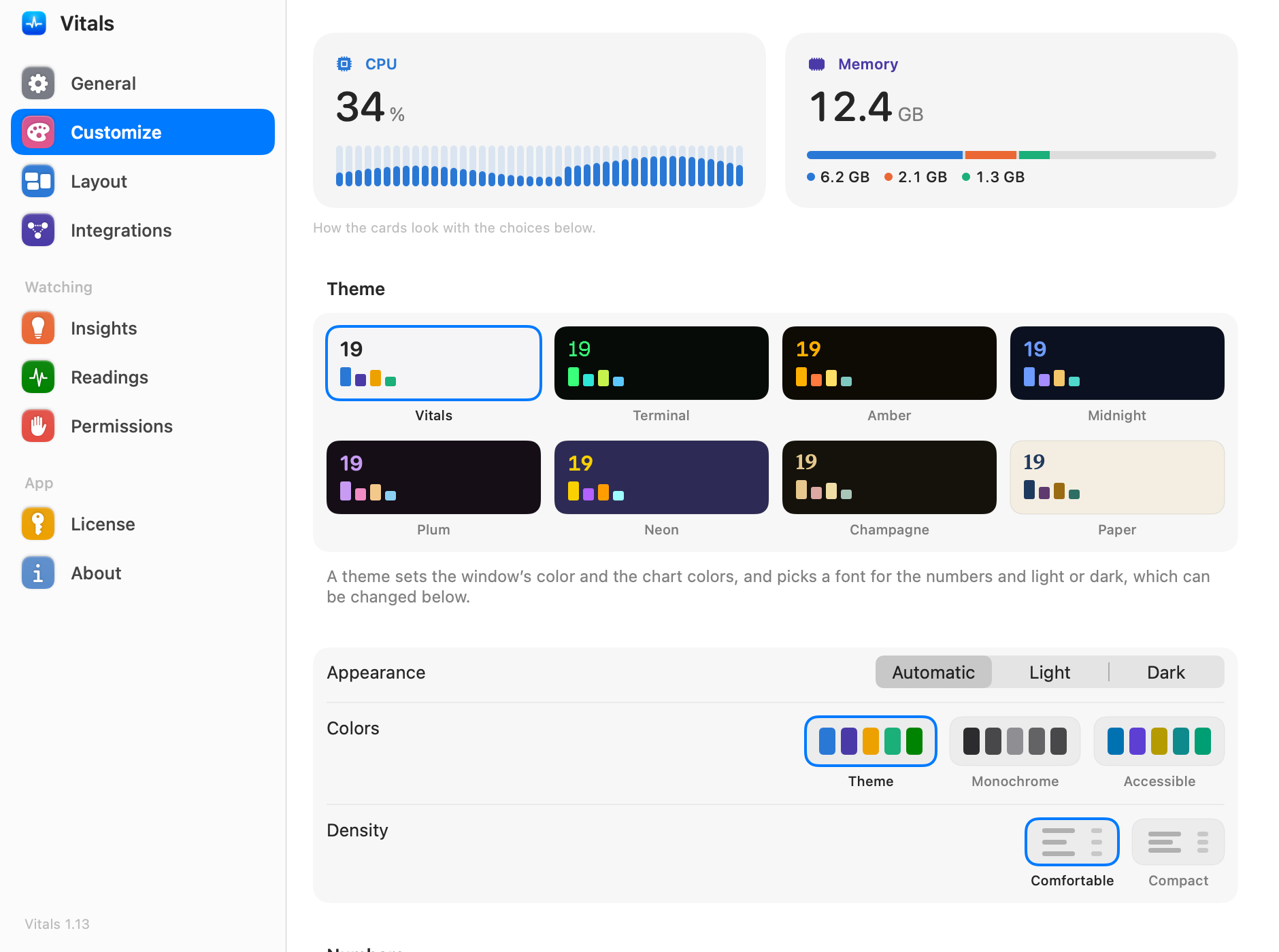
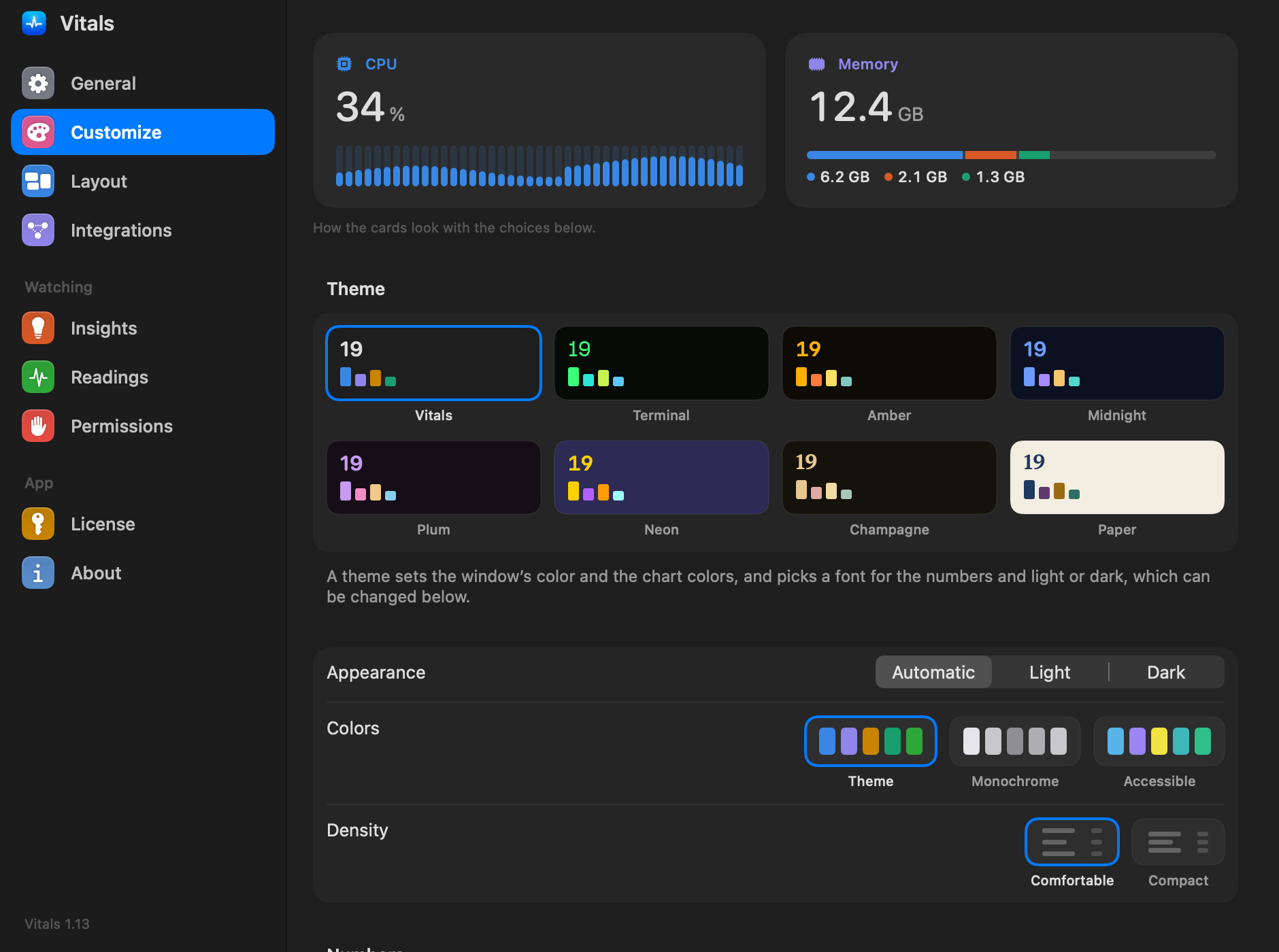
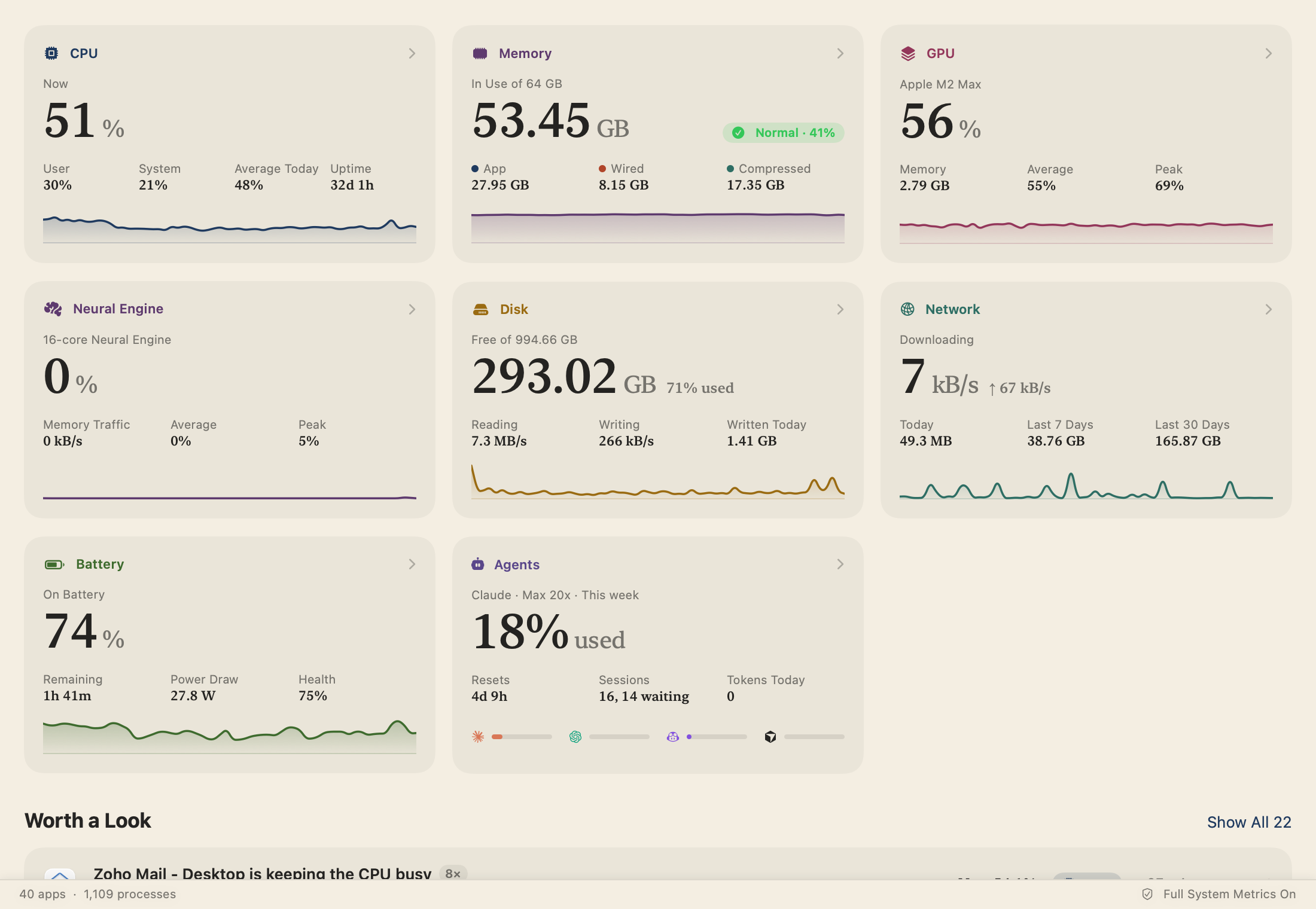
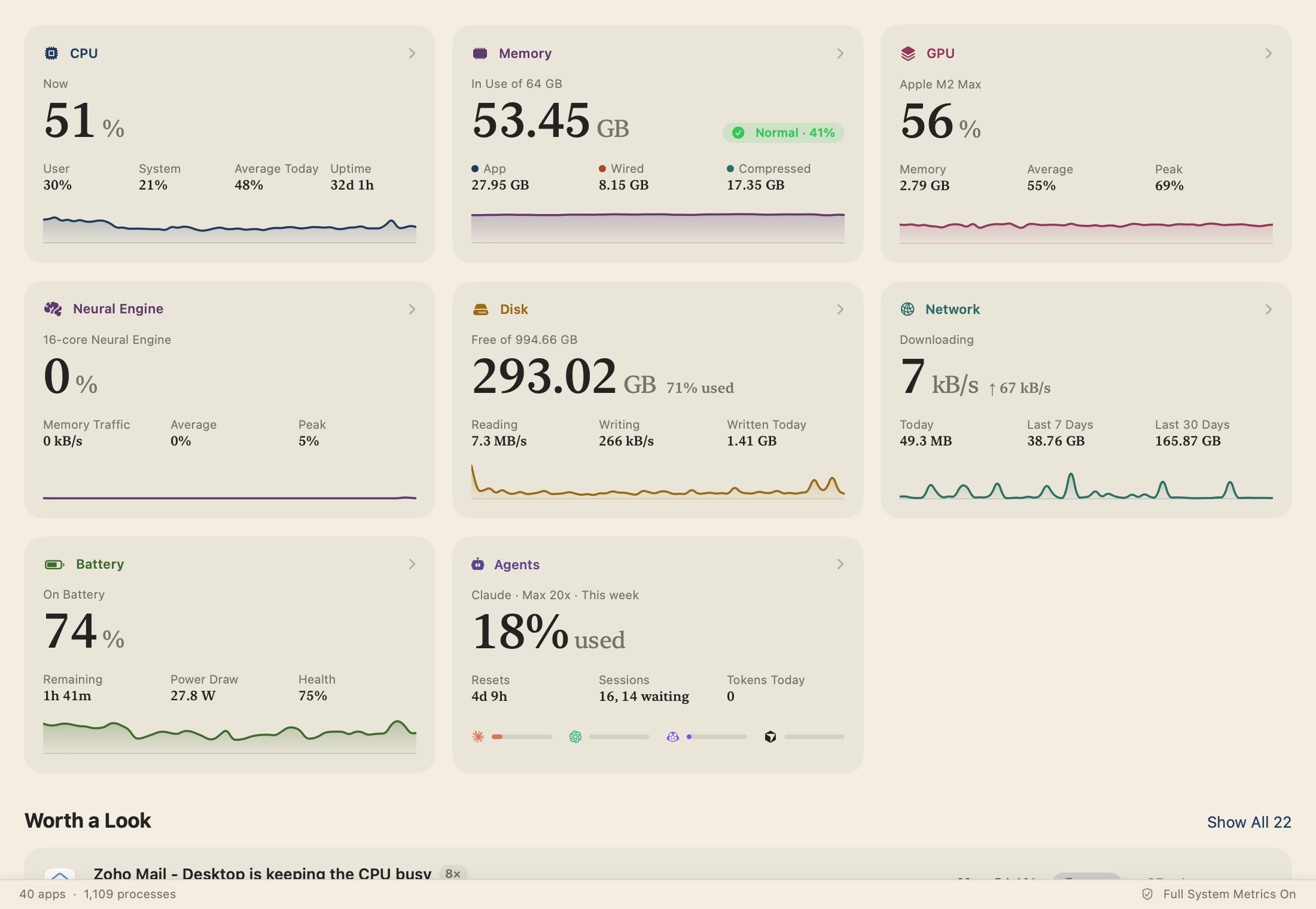
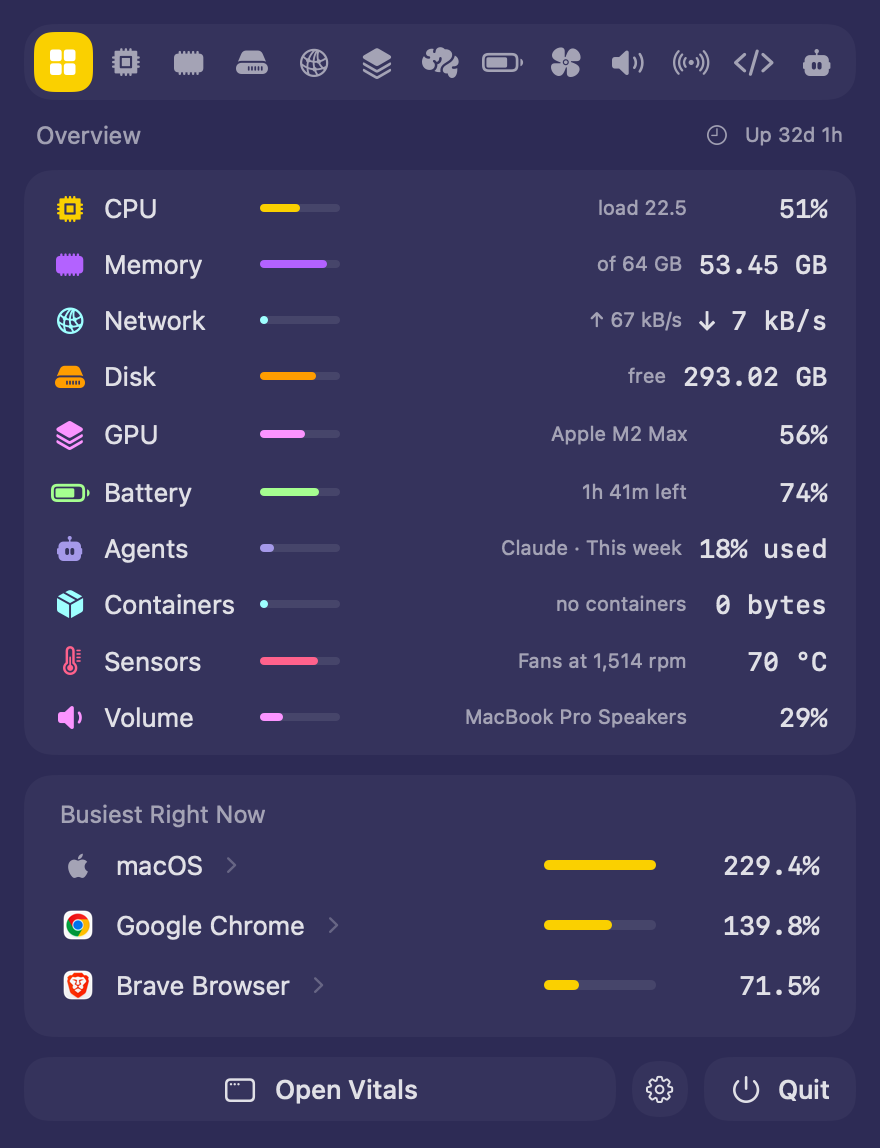
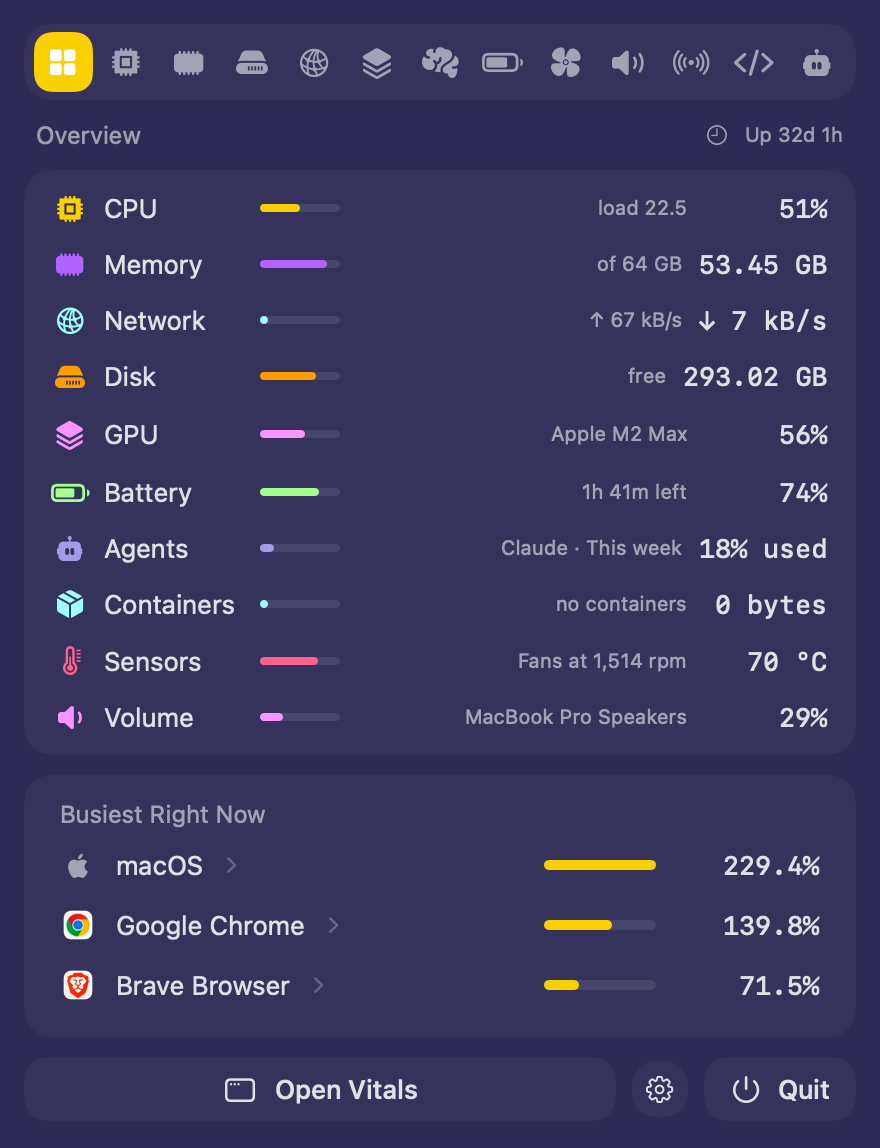
A theme sets three things at once: the window’s color, the colors of every chart, and the font of the big numbers. Terminal is phosphor green on near-black with pixel numbers. Amber is an old screen’s amber with SF Mono. Midnight is deep navy with blues and violets, Plum dark plum with lavender and pink, Neon deep purple with yellow, orange and cyan, and Champagne a warm dark with golds and New York numbers. Paper is warm off-white with charts in ink. Vitals keeps the look you know, light or dark with your Mac.
Pick a theme
- 01 Open Settings → Customize.
- 02 Click a theme under Theme. The window, the dropdown and Settings change at once.
- 03 To change one part of it, choose another Appearance, Colors or font under Numbers. The theme keeps the rest.
Light or dark
Paper is light, Vitals’ own follows the Mac, and the other six are dark. Appearance in Settings → Customize sets light or dark for Vitals alone, whatever the rest of the Mac uses.
The dropdown, Settings and your exports too
The theme is everywhere Vitals draws: the dropdown from the menu bar, Settings, the drawers that open over an app or a process, and sheets and popovers. A picture you export from a tab or the Overview, and the share card, are drawn on the theme’s ground in its colors.
Colorblind-friendly chart colors in any theme
Under the themes, Colors has three choices. Theme uses the theme’s own colors. Monochrome draws every chart in shades of gray. Accessible uses colors that stay apart for color-blind eyes. Monochrome and Accessible work with every theme, so Terminal’s window can keep charts anyone can tell apart.
Mute an alert
An alert in the notch now has Not Now, which closes it, and Mute, a menu like a phone’s:
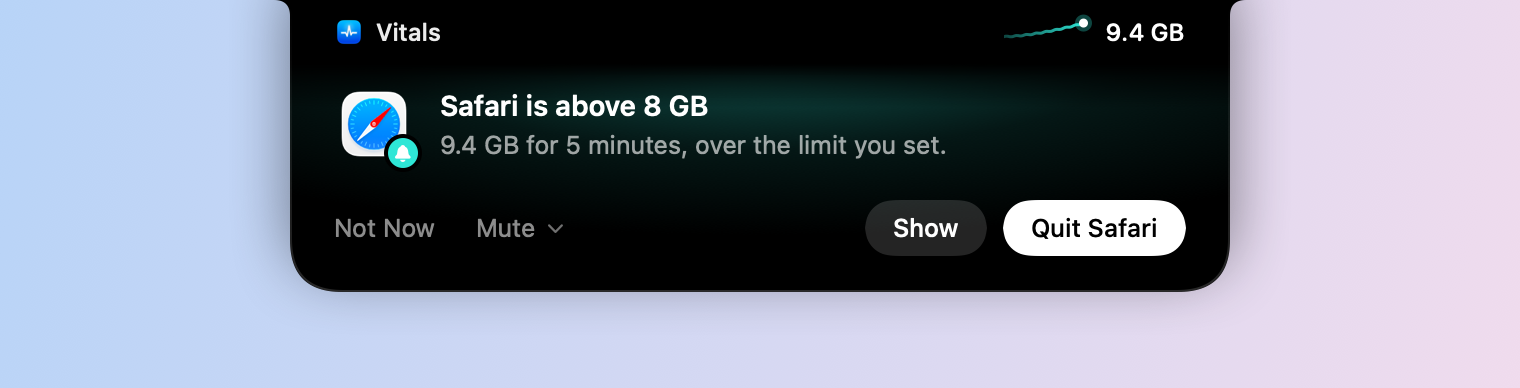
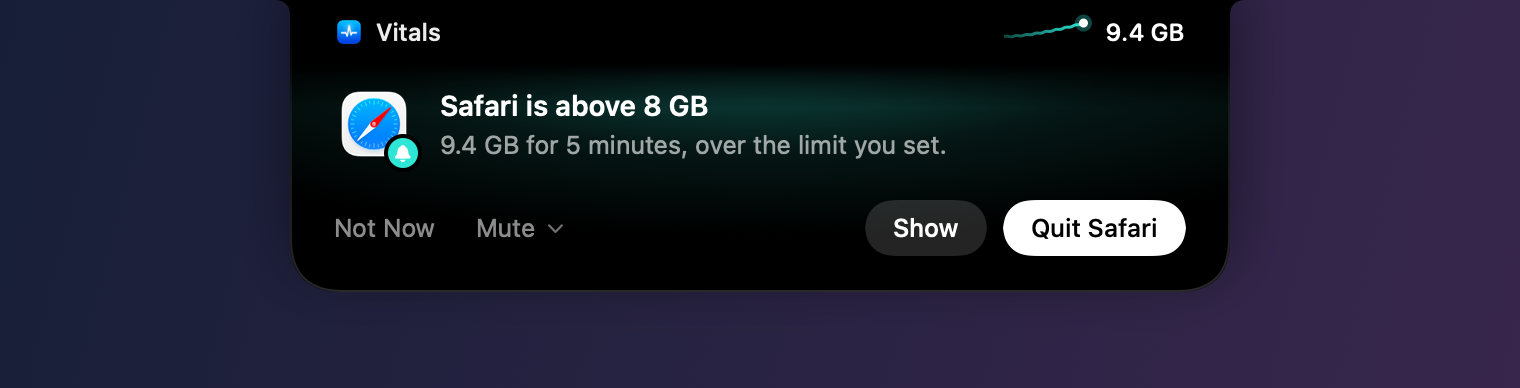
- The app, for an hour, until tomorrow or always. A muted app raises no alerts.
- That kind of alert, such as Growing Memory Alerts or Busy CPU Alerts, for the same times. These still collect under Worth a Look on the Overview.
- Mute All Alerts for an hour or until tomorrow.
- Insights Settings… opens Settings on Insights.
Settings → Insights lists everything muted under Don’t Tell Me About, with how long, and Tell Me Again beside each.
Quiet during a Focus
macOS gives an app from outside the App Store no way to ask which Focus is on, so Vitals has a Focus filter of its own.
- 01 Open System Settings → Focus and choose a Focus, such as Do Not Disturb or Work.
- 02 Under Focus Filters, click Add Filter and choose Vitals. Quiet Vitals’ Alerts is added with Keep Alerts Out of the Notch on.
While that Focus is on, alerts stay out of the notch. They wait in Notification Center if macOS allows them, and always collect under Worth a Look. With Full Disk Access, Vitals also notices a Focus you turn on by hand or on a schedule. To have alerts in the notch during a Focus, turn off Quiet During a Focus in Settings → Insights.
Read a long command before you allow it
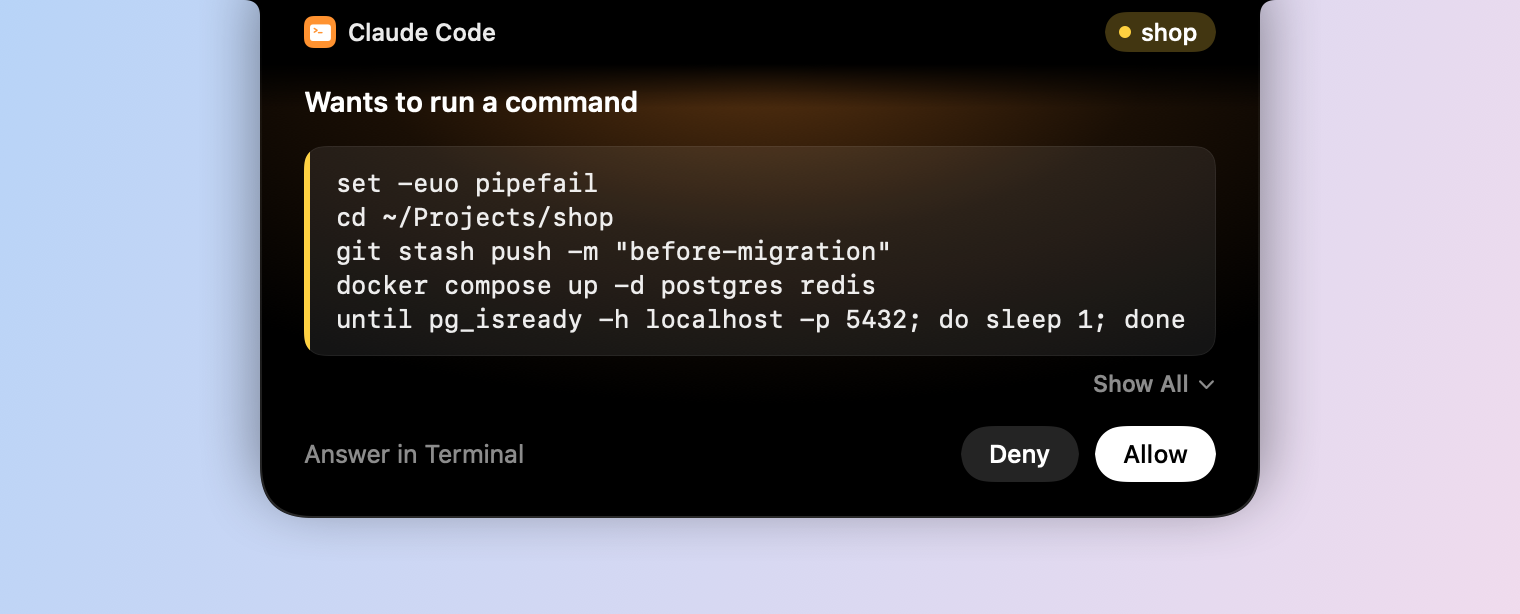
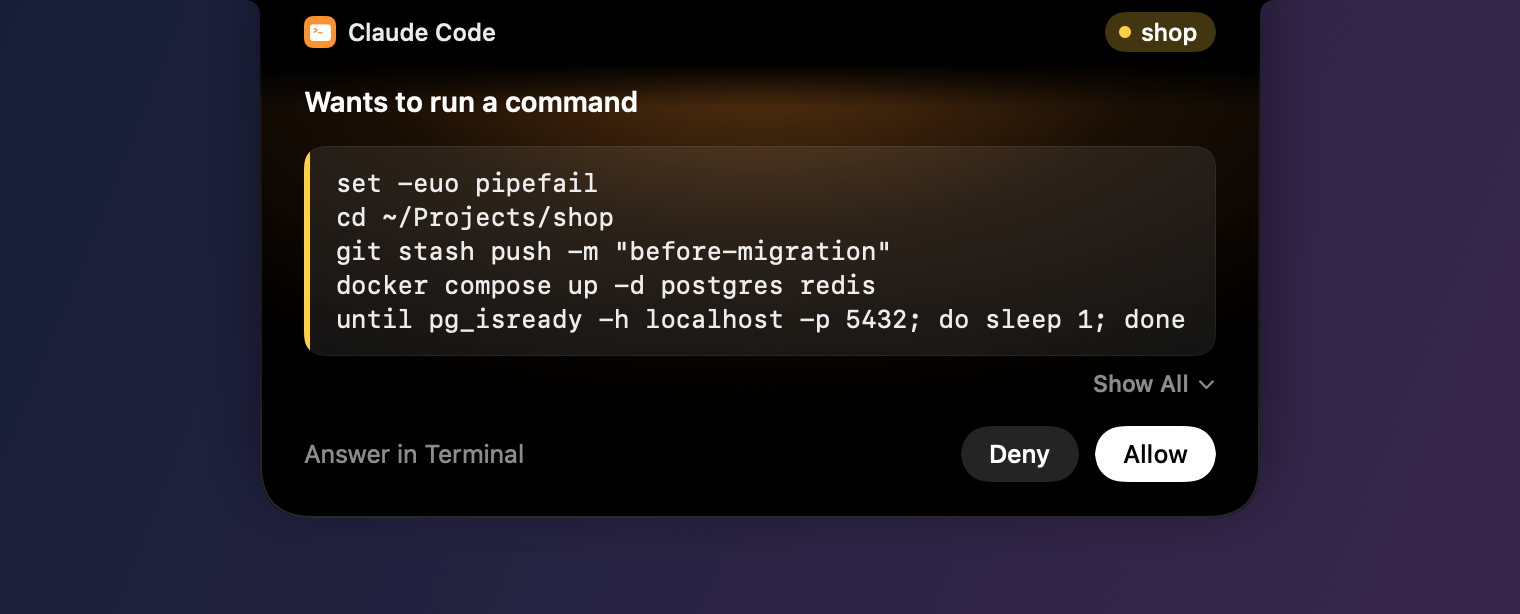
A command from a coding agent that runs past five lines is cut, with Show All under it. Click it and the whole command opens in the notch, scrolling when it is very long, so you can read what you are allowing. Show Less puts it back.
Remove the Vitals item
When every reading you show has an item of its own, the Vitals item can go. In Settings → Layout, click Remove beside The Vitals Item. Each reading’s item then opens the same menu, with Settings and Quit, and Show brings the Vitals item back.
Questions people ask
Is 1.13 a free update?
Yes. In Vitals, choose Check for Updates. It is part of every license.
Does a theme change my Mac’s appearance?
No. A theme dresses Vitals alone: its window, the dropdown, Settings and the pictures it exports. The rest of the Mac stays as it is.
Can I use a theme with another font?
Yes. Choose the theme, then another font under Numbers in Settings → Customize. The theme keeps its colors.
Is there a colorblind-friendly theme?
Any of them can be. Choose Accessible under Colors in Settings → Customize, and the charts stay apart for color-blind eyes while you keep the theme’s window.
Does muting an app stop Vitals from watching it?
No. Vitals still counts it in every tab. A muted app raises no alerts, and a muted kind of alert stays out of the notch and Notification Center but still collects under Worth a Look.
Why does Vitals need a Focus filter?
macOS has no way for an app from outside the App Store to ask which Focus is on. With the filter, the Focus tells Vitals as it turns on and off, which is Apple’s own way.
Everything in 1.13
Vitals 1.13 is a free update. In Vitals, choose Check for Updates, or download it from vitalsmac.com.
- New Eight themes. Pick Vitals, Terminal, Amber, Midnight, Plum, Neon, Champagne or Paper in Settings → Customize. Each sets the window’s color, the chart colors and the numbers’ font, and carries to the dropdown, Settings and the pictures you export.
- New Colorblind-friendly colors in any theme. Colors now offers Theme, Monochrome and Accessible. Accessible’s chart colors stay apart for color-blind eyes, whatever the theme.
- New Mute an alert. An alert in the notch has Not Now and Mute. Mute quiets that app or that kind of alert for an hour, until tomorrow or for good, or every alert for an hour or until tomorrow. Settings → Insights lists what is muted under Don’t Tell Me About, each with Tell Me Again.
- New Quiet during a Focus. Add Vitals’ Focus filter, Quiet Vitals’ Alerts, to a Focus in System Settings → Focus. While that Focus is on, alerts stay out of the notch and wait in Notification Center, and they always collect under Worth a Look. With Full Disk Access, Vitals also notices a Focus you turn on by hand or on a schedule. Settings → Insights → Quiet During a Focus turns this off.
- New Read a long command before you allow it. A command longer than five lines has Show All under it, which shows the whole command in the notch. Show Less puts it back.
- New A Bar look for menu bar items. A reading with an item of its own can show its short name over a bar that fills with the reading, green, then yellow, then red. In Settings → Layout, click the item and choose Bar under Look. Network and Power have no bar, since they have no top.
- New Remove the Vitals item. When every reading you show has an item of its own, Remove in Settings → Layout takes the Vitals item away. Each reading’s item then opens the same menu, with Settings and Quit, and Show brings the Vitals item back.
- Improved Alerts in the notch have quieter type: one bold headline, and buttons sized as a Mac’s own.